
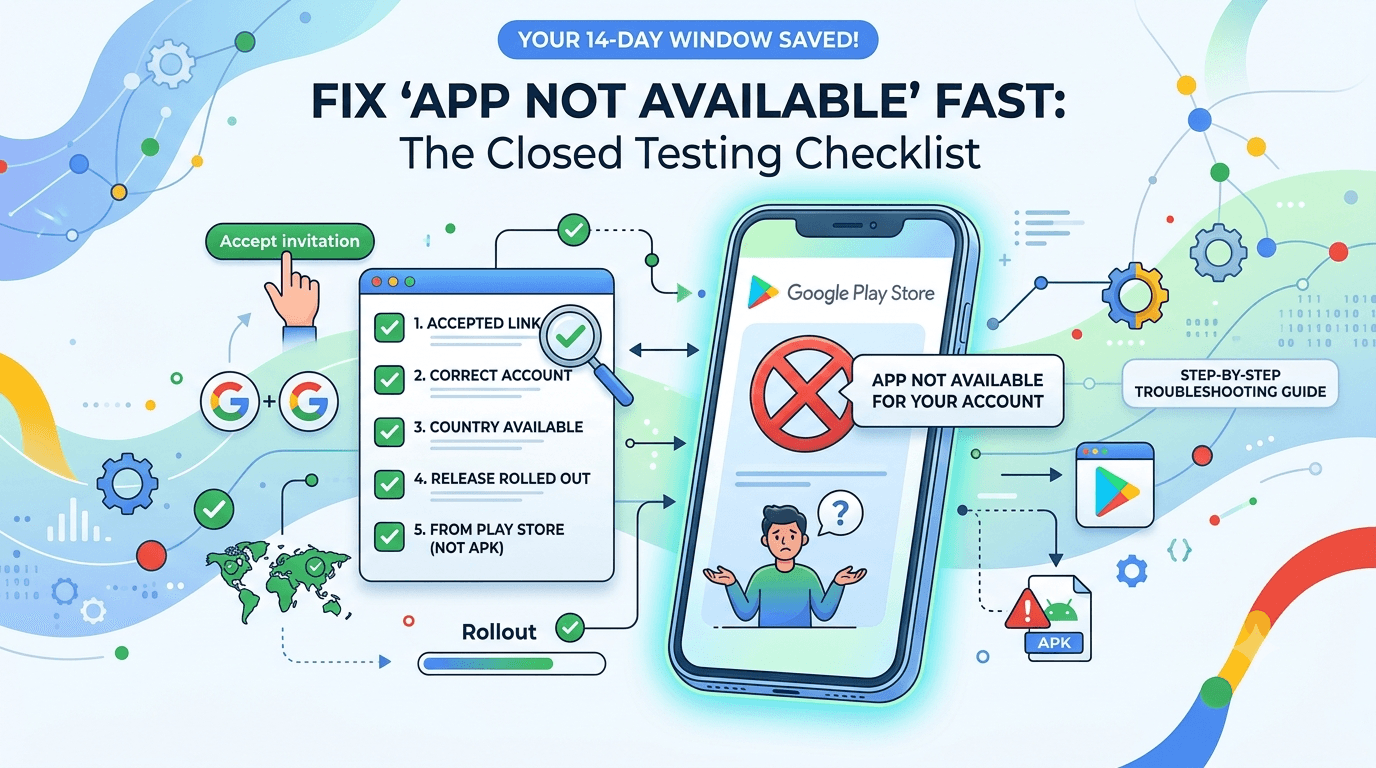
Your closed test is live, but a tester messages you: "It says the app is not available." Install problems are among the most common closed testing headaches, and they almost always trace back to a handful of causes. This checklist helps you fix them fast so your 14-day window stays on track.
Quick answer
Featured answer: A tester usually cannot install a closed testing app because they have not accepted the opt-in link, are signed in with a different Google account, are in an unsupported country, or changes have not propagated yet. Confirm the account matches the tester list and re-open the opt-in link.
The 7 common causes
- The tester has not accepted the opt-in link.
- They are using a different Google account than the one on the tester list/group.
- The release is not fully rolled out on the track.
- Country/region availability excludes them.
- Device or OS does not meet the app's minimum requirements.
- Changes to the group have not propagated yet.
- The tester is trying to install an APK instead of installing from Play.
Step-by-step fixes
| Symptom | Fix |
|---|---|
| "Not available for your account" | Confirm the on-device Google account is on the tester list/group |
| Opt-in page missing | Re-send the exact opt-in link; have them tap "Become a tester" |
| Cannot find app in Play | Open via the opt-in link, then the Play listing appears |
| Region error | Add their country to the release availability |
| Device incompatible | Check min SDK / device requirements |
If the opt-in link itself is broken, see opt-in link not working. If it is a group problem, see Google Groups not working.
Warning: Never ask testers to sideload an APK to "work around" it. Sideloaded installs do not count toward the requirement. Always install from Google Play.
Prevent install issues
- Give testers clear steps: open link → become a tester → install from Play.
- Tell them which Google account to use.
- Set country availability broadly enough for your testers.
- Allow time for changes to propagate before expecting installs.
Tip: Professional testers already know this flow, which removes install friction. FastTesters assigns testers who install correctly from Play. Submit your app.
Device and OS considerations
Sometimes the account and opt-in are perfect but the install still fails — and the cause is the device itself. Keep these compatibility factors in mind:
- Minimum SDK: If your app targets a higher minimum Android version than the tester's phone runs, Play will hide it as incompatible.
- Screen and hardware requirements: Declared features (like a camera) can exclude devices that lack them.
- Country of the account: The Play account's country, not just the device location, affects availability.
- Storage and updates: Low storage or a very outdated Play Store app can block installs.
When only one tester is affected, suspect their device or account. When many are affected at once, suspect a track-wide setting such as country availability or an incomplete rollout.
Give testers a simple script
Most install issues vanish when testers follow the exact flow. Share a short script: "1) On your Android phone, sign in with the Google account you gave me. 2) Open this opt-in link. 3) Tap Become a tester. 4) Install from the Google Play page that appears." Removing guesswork prevents the majority of "it does not work" messages.
A systematic way to diagnose install problems
When a tester cannot install your app, the temptation is to try random fixes, but a systematic approach resolves it faster. Install failures almost always trace to one of five root causes: an account mismatch, an incomplete opt-in, a release that has not finished rolling out, a region restriction, or an attempt to sideload rather than install from Play. Working through these in order pinpoints the problem quickly instead of leaving you guessing.
Start with the most common cause and move down the list. Ask the tester which Google account they are using, confirm they completed opt-in, check that your release is fully processed and rolled out, verify their region is included, and confirm they are installing from Google Play rather than an APK file. In the vast majority of cases, one of these five is the culprit, and identifying which one tells you exactly what to fix. A calm, ordered check beats frantic trial and error every time.
The number one cause: account mismatch
By far the most frequent reason a tester cannot install is that they are not using the same Google account they opted in with. Android devices can have multiple Google accounts, and testers often opt in with one account in a browser but have a different account active in the Play Store on their phone. From Google's perspective, the account on the device is not a tester, so the app appears unavailable.
The fix is to ensure account consistency: the tester must opt in and install from Play using the exact same Google account. Have them check which account is active in the Play Store app and confirm it matches the one on your tester list or in your Google Group. This single issue accounts for a huge share of "it's not available" reports, so always check it first — it is often the entire problem.
Release rollout and region restrictions
Two setup-related causes are worth checking next. First, a release needs time to process and roll out after you upload it; if a tester tries to install immediately, the app may not yet be available to them. Allow the release to finish processing and confirm it is live on the closed track. Second, closed testing can be restricted by country. If your testers are in regions you have not enabled, the app will appear unavailable to them. Make sure your testing is configured for the regions your testers are in — enabling broad or global availability avoids this entirely for worldwide testers.
These causes are easy to overlook because they are about your configuration rather than the tester's actions. If account consistency checks out but the app is still unavailable, rollout timing and region settings are the next things to verify. For worldwide testing, enabling global availability removes region as a variable.
Sideloading and opt-in mistakes
Two more causes complete the picture. Some testers, trying to be helpful, attempt to install an APK file directly instead of installing from Google Play — but sideloaded installs do not work for closed testing access and do not count toward your requirement. Always direct testers to install through the Play Store via the opt-in flow. Relatedly, a tester who received the opt-in link but never actually completed opt-in will not have access. Confirm each tester tapped the link, accepted the invitation, and only then installed from Play. Walking a confused tester through these exact steps usually resolves the issue on the spot.
Preventing install problems before they start
Most install headaches are preventable with clear onboarding. Give every tester a simple, plain-language set of steps: which account to use, to tap the opt-in link and accept, and to install from the Play Store (never an APK). Set expectations about the brief rollout delay after you upload. Enable broad regional availability if your testers are international. Clear instructions up front prevent the majority of install support requests, saving you and your testers time. This is also why professional testing services, which handle onboarding for you, tend to have far fewer install issues — the process is standardized and the common mistakes are designed out.
A checklist to send your testers
Most install problems are prevented at the source: giving testers a clear, foolproof set of instructions. Rather than fielding the same questions repeatedly, send every tester a short checklist they can follow independently. A good one reads roughly like this: confirm which Google account is active in your Play Store app; open the opt-in link and accept the invitation using that same account; wait a moment if the app does not appear immediately; then install the app from the Play Store, not from any APK file; and keep it installed for the full testing period. These five steps eliminate the vast majority of install failures because they pre-empt the most common causes — account mismatch, incomplete opt-in, rollout delay, and sideloading.
The reason a written checklist works so well is that install problems are rarely due to anything broken on your end; they are due to a step being skipped or done with the wrong account. A tester following a clear checklist simply does not make those mistakes. This is also why professional testing services see so few install issues — their onboarding is standardized, so every tester follows the same proven path. You can achieve the same reliability by standardizing your own onboarding message.
Device and storage factors
Beyond account and configuration issues, a smaller set of install failures come from the tester's device itself. Insufficient storage space is a surprisingly common culprit — a phone that is nearly full cannot install a new app, and the resulting error can look like an access problem. An outdated Play Store or Android version can occasionally interfere as well. And network problems during download can cause installs to fail or stall. When a tester has confirmed correct account and opt-in but still cannot install, ask them to check their available storage, ensure their Play Store is up to date, and try again on a stable connection. These device-side factors are easy for testers to resolve once identified, and ruling them out completes your diagnostic picture when the usual account and configuration checks come up clean.
Regional availability and install failures
A frequently overlooked cause of install failures is regional configuration, which becomes especially important when your testers are spread around the world. Closed testing availability can be limited by country, and if a tester is located in a region you have not enabled, the app will simply appear unavailable to them — with no obvious indication that geography is the reason. This produces baffling situations where some testers install fine while others, doing everything correctly, cannot install at all. The common factor is that the ones who fail happen to be in unenabled regions.
The fix is straightforward: review your testing track's country availability and enable the regions your testers are in. If you are working with worldwide testers — as many developers do, especially when using a service — enabling broad or global availability removes region as a variable entirely. This is one of the first things to check when install failures cluster among international testers while local ones succeed, because it points directly at a configuration cause rather than anything on the testers' side.
Regional issues illustrate a broader troubleshooting principle: when some testers succeed and others fail under identical instructions, look for what differs between the two groups. Region is a classic differentiator, as are device type and Android version. By comparing the successful and unsuccessful testers, you can often isolate the cause quickly. And by enabling wide availability from the start, you prevent the entire category of region-based install failures before it can occur.
Key takeaways
- Diagnose systematically: account, opt-in, rollout, region, sideloading.
- Account mismatch is the top cause — testers must use the same Google account throughout.
- Allow rollout time and check region settings before assuming a deeper problem.
- Never sideload; testers must install from Google Play via opt-in.
- Clear onboarding prevents most install issues.
Frequently asked questions
Why does it say the app is not available?
Almost always an account or opt-in mismatch, or region restriction.
Can testers install the APK directly?
They can, but it will not count. Installs must come from Google Play.
How long after opt-in can they install?
Usually quickly, but allow time for the release and list to propagate.
Does the device matter?
Yes — it must meet the app's minimum OS and hardware requirements.
What if multiple testers cannot install?
Check release rollout status and country availability first; those affect everyone.
Can a tester use more than one device?
Yes, as long as the same invited Google account is signed in on each device. The account is what matters, not the specific phone.
Does clearing the Play Store cache help?
Sometimes. If a tester is stuck after opting in, clearing the Google Play Store cache and reopening the opt-in link can resolve a stale state.
Conclusion
Install problems in closed testing are almost always account, opt-in, region, or propagation issues — all quick to fix. Give testers clear instructions, use the correct account, and always install from Play. Want testers who breeze through installs? Submit your app today.
Expanded for topical authority — additional practical sections below. Original guide content above is unchanged.
Real-world scenarios: who this matters for
The guidance in this article on Tester Cannot Install the App? Fix Closed Testing Installs applies across many Android product types. Use these scenarios to map the advice to your situation.
| Developer type | Typical challenge | Practical focus |
|---|---|---|
| Indie / solo | Limited tester network and time | Start closed testing early; keep a buffer above 12 opted-in testers; parallelize listing + Data safety work |
| Startup | Launch deadline vs 14-day rule | Treat the window as fixed; recruit in parallel with QA; avoid last-minute track setup |
| Agency / white-label | Multiple client apps, each needing its own test | One closed test per app; standardize opt-in onboarding; track eligibility dates per client |
| Flutter / React Native | Cross-platform build + Play Console quirks | Ship a signed AAB to closed testing; verify installs from Play, not sideload; watch vitals on mid-range devices |
| Native Kotlin | Device/API fragmentation | Cover API levels and OEMs in your tester mix; fix crashes before requesting production |
| Game / Unity | Performance + retention during 14 days | Keep testers engaged so count never dips below 12; monitor ANRs and battery |
| E-commerce / fintech | Policy + payment flows | Test checkout, permissions, and declarations carefully before production access |
| Healthcare / kids / education | Sensitive policies (Families, data) | Align listing, privacy, and content rating with real app behavior during the test window |
Visual placeholder: Scenario matrix infographic — Indie / Startup / Agency / Cross-platform paths for Tester Cannot Install the App? Fix Closed Testing Installs.
Comparison: DIY recruitment vs managed closed testing
When your goal is Google Play production access, the path you choose for testers affects time, risk, and feedback quality. Use this comparison while deciding how to apply Tester Cannot Install the App? Fix Closed Testing Installs.
| Approach | Time to 12 opted-in | Cost | Dropout risk | Feedback quality | Best when |
|---|---|---|---|---|---|
| Friends & family | Days–weeks | $0 | High | Mixed | Tiny MVP, flexible timeline |
| Reddit / Discord / Telegram | Unpredictable | $0–low | High | Variable | You can manage onboarding daily |
| Peer community exchange | Variable | $0 | Medium | Developer-biased | You can test others’ apps in return |
| Managed closed testing (e.g. Fast Testers) | ~1 hour after valid link | $15 one-time / app | Low (buffer of 15) | Real Play installs | You need speed + continuity for 14 days |
Decision tip: If a broken streak would delay revenue or a client deadline, prioritize reliability over $0 recruitment. DIY is fine when you already have engaged testers and can monitor Play Console daily.
Visual placeholder: Comparison diagram — DIY vs community vs managed testing for Tester Cannot Install the App? Fix Closed Testing Installs.
Common mistakes (and how to avoid them)
These mistakes repeatedly show up when developers work through Tester Cannot Install the App? Fix Closed Testing Installs:
- Confusing invited vs opted-in testers — Only testers who open the opt-in link and install from Play count toward 12. Check the opted-in number in Play Console, not your email list.
- Recruiting exactly 12 with no buffer — One uninstall can break continuity. Aim for ~15 active opted-in testers.
- Starting the counted clock late — Listing assets, Data safety, and privacy work should run during the 14 days, not after.
- Using sideloaded APKs or fake installs — They do not satisfy Play’s closed testing expectations and can create account risk.
- Ignoring tester feedback until day 14 — Crashes that drive uninstalls threaten your streak and your review outcome.
- Requesting production access before the continuous streak completes — Eligibility checks fail even if calendar time has passed.
Action checklist
Use this checklist alongside the rest of this guide on Tester Cannot Install the App? Fix Closed Testing Installs:
- ☐ Closed testing track created with a signed release (AAB)
- ☐ Opt-in link tested on a fresh Google account
- ☐ At least 12 testers opted in (prefer ~15)
- ☐ Daily check that opted-in count stays ≥ 12 for 14 continuous days
- ☐ Core flows exercised (login, main feature, permissions, offline/online)
- ☐ Crashes / ANRs triaged from tester reports and vitals
- ☐ Store listing, screenshots, and feature graphic drafted
- ☐ Privacy policy + Data safety + content rating aligned with real behavior
- ☐ Production access requested only after eligibility is green
- ☐ Staged rollout plan ready for first public release
Additional FAQs developers ask about Tester Cannot Install the App? Fix Closed Testing Installs
Quick answer: what should I do first?
Confirm you are on a closed testing track with real opted-in installs, keep 12+ testers for 14 continuous days, and fix policy/stability issues in parallel. Then use the detailed sections above for Tester Cannot Install the App? Fix Closed Testing Installs.
Does this apply to organization (company) accounts?
The classic 12×14 closed testing gate is primarily associated with new personal developer accounts. Always verify your account type and current Play Console eligibility messaging for your app.
Do friends and family count as testers?
Yes — if they opt in via your closed testing link and install from Google Play. They only help if they stay opted in for the continuous period.
Can I update the app during the 14 days?
You can usually push updates on the closed track, but unstable releases that cause uninstalls can threaten your tester count. Prefer polishing via internal testing first when possible.
What if production access is still rejected?
Read the exact reason. Incomplete testing is only one category — policy, Data safety mismatches, and crashes are common. Fix the cited issue fully before reapplying.
Is paying for testers allowed?
Using real people who install from Play is what matters. Avoid fake install farms. A one-time managed service that supplies real closed testers is a practical option when DIY recruitment is too slow.
How is Fast Testers different from free communities?
Free communities trade time and mutual availability. Fast Testers assigns about 15 real testers after you submit a valid closed testing link (one-time $15 per app) and includes a production access guarantee under its refund terms.
Where should I go next?
Review the related guides below, then either finish DIY recruitment or start closed testing if you need speed and continuity.
Sources, updates, and how to use this guide
This article on Tester Cannot Install the App? Fix Closed Testing Installs is maintained for Android developers preparing Google Play closed testing and production access. Always cross-check eligibility text inside your own Play Console, because Google’s UI labels and account rules can vary by account type and date.
- Primary official references: Google Play closed testing help, Developer Program Policies, and Play Console eligibility messaging for your app.
- Practical experience lens: guidance here reflects common failure modes indie developers and agencies hit when recruiting testers, maintaining the 14-day streak, and recovering from production-access rejections.
- Last reviewed focus: 12×14 closed testing continuity, real vs fake testers, and parallel listing/compliance work during the window.
Related guides and next steps
Continue building topical depth around Tester Cannot Install the App? Fix Closed Testing Installs with these Fast Testers resources:
- Avoiding Tester Dropout During 14 Day Testing
- Fast Testers Vs Manual Tester Recruitment Cost Analysis
- How Google Detects Fake Testers And Install Farms
- Accessibility Testing Before Play Store Launch
- Account Termination Risks And How To Avoid Them
- Ad Supported Apps And Google Play Ad Policy Testing
- Agency Guide Testing Client Apps On Google Play
- Analytics Sdk Testing During Closed Testing
- Pricing — $15 closed testing
- How Fast Testers works
- FAQ
- Developer reviews
- Case studies
- Submit your app / start closed testing
Need reliable testers so your 14-day streak does not stall? Educate first with the guides above, then start when you are ready — one-time pricing, real Play installs, dashboard tracking.
Further expansion — case study, decisions, and expert recommendations. Prior sections remain unchanged.
Case study: indie app that needed 12 testers in under a day
Problem: A Flutter indie developer had a client demo in three weeks. Friends-and-family recruitment stalled at 6 opted-in testers after five days of chasing messages.
Solution: They kept DIY outreach running, but also submitted a valid closed testing opt-in link to a managed service to reach ~15 real Play installs quickly. They used this guide on Tester Cannot Install The App? Fix Closed Testing Installs to brief testers on what to exercise (onboarding, permissions, offline mode) and monitored Play Console daily so the continuous streak would not break.
Result: Opted-in count stabilized above 12 within hours of assignment; 14 continuous days completed; production access requested on schedule.
Lessons learned:
- Recruit a buffer early — waiting until day 10 is the expensive mistake.
- Real Play installs beat large invite lists.
- Managed testing is a timeline tool, not a substitute for fixing product quality.
Decision guide: what should you do next?
Use this decision path when applying Tester Cannot Install The App? Fix Closed Testing Installs:
- Is your account a new personal developer account that still needs production access?
If yes, plan for closed testing with 12+ opted-in testers for 14 continuous days. If no, still test — but confirm the exact eligibility text in Play Console. - Do you already have 12+ reliable people who will install from Play and stay for two weeks?
If yes, DIY can work — add a buffer and monitor daily. If no, use community exchange or a managed closed testing service. - Is your build stable enough that testers will not churn?
If no, run internal testing first. Entering the counted window with crash loops is how streaks die. - Are Data safety, privacy policy, permissions, and listing aligned with real behavior?
If no, fix during the window so production review does not bounce you after the clock. - Has production access been rejected?
Classify: eligibility vs policy vs declarations vs stability. Fix that category completely, then re-test / re-request.
Visual placeholder: Decision tree diagram for Tester Cannot Install The App? Fix Closed Testing Installs (DIY vs managed vs fix-and-retry).
Expert recommendations
- Instrument the streak: Check opted-in count daily for the first week; replace dropouts same day.
- Brief testers once: Send a short checklist (install from Play, open app daily, try core flow, report crashes). Silent testers still count if opted in — engaged testers protect quality.
- Never “solve” recruitment with fake installs: It fails the intent of closed testing and can create account risk.
- Ship a boring-stable build to closed testing: Save experimental features for internal tracks.
- Educate first, then accelerate: If your blocker is simply finding real testers fast, a one-time managed option (Fast Testers: 15 testers, $15/app) is often cheaper than slipping a launch.
For hands-on setup after reading about Tester Cannot Install The App? Fix Closed Testing Installs, see how it works and pricing, or submit your closed testing link when you are ready.
Internal navigation hub — added to strengthen topical connections. Original article content above is unchanged.
Continue learning
- Avoiding Tester Dropout During 14-Day Testing — Learn about tester retention for Google Play closed testing. Complete guide for Android developers publishing .
- Closed Testing Track Not Showing in Play Console? — Closed testing track not showing in Google Play Console? Learn why the track or tab is missing and how to crea.
- Closed Testing vs APK Sharing: What Counts? — Closed testing vs APK sharing for Google Play: why sideloaded APKs do not count toward production access and h.
- Closed Testing vs Firebase App Distribution — Closed testing vs Firebase App Distribution: what each is for, why Firebase does not satisfy Google Play produ.
- Closed Testing vs TestFlight: Android vs iOS Beta — Closed testing vs TestFlight: how Android and iOS beta testing differ, what each requires, and what Android de.
- Common Google Play Closed Testing Mistakes to Avoid — The most common Google Play closed testing mistakes — wrong track, too few testers, dropouts, sideloading — an.
Next steps
- Ready to run closed testing with real Android testers? Submit your app or see pricing ($15 one-time).
- Compare options on our testing service comparison page, or read developer reviews and case studies.
- Still deciding? Review how Fast Testers works and the FAQ.