
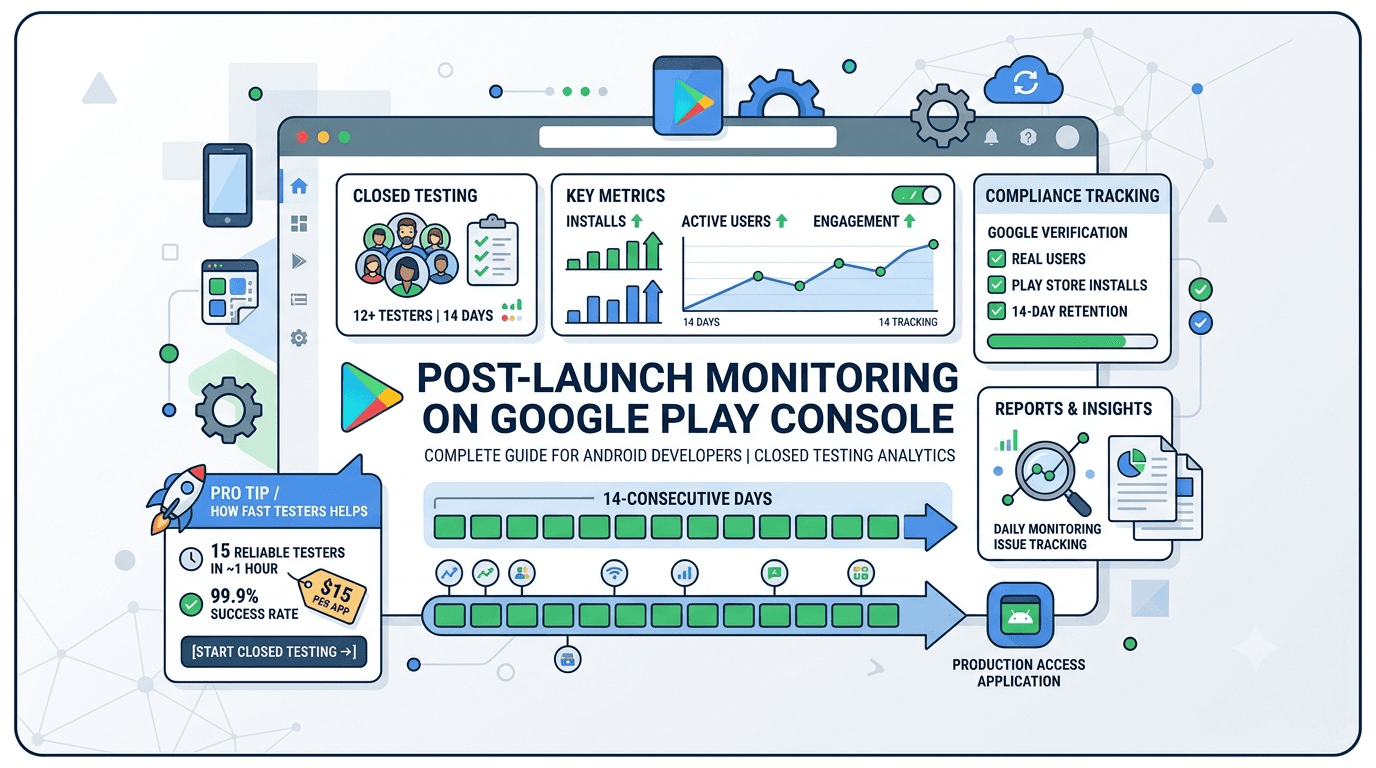
Deploying a mobile app to the Play Store demands more than clean code; it requires navigating Google's strict release ecosystem. Initiating Google Play closed testing is a vital foundational milestone for new developer accounts. This analytical phase guarantees performance stability, layout responsiveness, and user retention long before public production access is granted.
This comprehensive guide addresses how to leverage post-launch analytics inside your Google Play Console, satisfy compliance benchmarks seamlessly, and utilize specialized delivery ecosystems like Fast Testers to compress your testing timelines.
Critical Compliance Update: Personal developer accounts registered on or after November 2023 must legally run a closed testing track. Google requires a minimum of 20 testers enrolled actively for at least 14 consecutive days before production application permissions can unlock.
Why Post-Launch Monitoring Matters
The closed testing track acts as a dynamic shield against unexpected application runtime failures and negative user reviews. By analyzing diagnostic signals, developers catch critical issues early, such as memory allocation errors, API level mismatch failures, and device layout breaks, before they reach a broader audience.
Furthermore, Google’s automated system closely evaluates engagement patterns. App installations that are instantly deleted or stay entirely inactive trigger diagnostic flags, which can delay deployment. Real engagement from authentic testers is essential to verify your platform's production readiness.
What Google Evaluates For Approval
When you submit a request for production access, review systems evaluate the integrity of your telemetry data. Google assesses several key criteria to verify authentic testing activity:
| Metric Group | Target Benchmarks | Verification Method |
|---|---|---|
| Tester Volume | Minimum 20 unique testers opt-in | Google account mapping via opt-in web terminal link |
| Track Duration | 14 continuous unbroken days | Daily continuous analytics activity tracking |
| Device Integrity | Valid hardware components | Exclusion of basic emulators, simulators, or bot networks |
| Feedback Health | Active diagnostic reporting | Optional direct feedback loops through Play Console interface |
Step-by-Step Closed Testing Compliance
- Upload Release Package: Navigate to the Closed Testing area within the release menus and upload your signed Android App Bundle (.aab).
- Configure Target Audience: Define your testing group via Google Group emails or web community rosters, then generate the web-based Play Store opt-in link.
- Onboard Active Accounts: Gather 20+ real testers or use specialized testing networks like Fast Testers to quickly assign verified Android devices.
- Review Play Console Dashboards: Check your engagement charts daily to confirm all accounts maintain stable, continuous testing status.
- Apply for Production: Complete the qualitative application questionnaire outlining your feedback responses and testing evidence once day 14 concludes.
Common Pitfalls That Cause Rejections
- Mistaking Track Formats: Running internal test instances instead of using specific target web/group tracks under the official Closed Testing menus.
- Tester Dropout: Dropping below 20 active opted-in testers mid-way through the track, which resets the continuous 14-day tracking clock.
- Premature Application Submissions: Trying to apply on day 12 or 13 before the automated checking engine registers 14 complete days of telemetry data.
- Sideloading Packages: Sending plain compilation files (.apk) rather than routing users through safe store links, which completely bypasses Play Console analytics tracking.
Accelerating Launch Requirements Safely
Gathering 20 real individuals across a diverse mix of physical Android hardware setups for two full weeks is a common bottleneck for independent creators and small software teams. This logistical hurdle often stalls deployment plans for weeks.
Fast Testers streamlines this process by providing a secure, professional alternative. For a single flat payment of $15 per app, you gain access to 15-20 verified hardware testers. This approach eliminates recruitment overhead, preserves security configurations, and ensures reliable analytical engagement, allowing you to easily meet Google's strict validation checks.
Frequently Asked Questions (FAQ)
Ready to Clear Your Closed Testing Hurdles?
Bypass weeks of tedious recruitment. Secure 20 verified real-device testers and safeguard your upcoming Google Play production release today.
Start Closed Testing Now →From closed testing to continuous monitoring
The monitoring habits that serve you after launch begin during the mandatory closed test — 12 testers opted in for 14 continuous days before production. In the window you watch crashes, feedback, and tester engagement; after launch you watch the same signals at scale. Treating post-launch monitoring as a continuation of testing, rather than a new activity, means you enter production already fluent in the metrics that matter. The app that was validated by real testers should keep being watched by real data. See our closed testing guide and Android vitals during closed testing.
Keeping a pool of reliable testers after launch lets you validate updates before they reach everyone, extending the safety of the window into your live app. To keep dependable testers on call, you can submit your app. See updating after release.
Android vitals: your health dashboard
Android vitals in the Play Console are your primary health signal: crash rate, ANR (Application Not Responding) rate, excessive wakeups, and other bad-behavior metrics. Poor vitals do not just annoy users — they can reduce your store visibility and trigger warnings, so watch them daily in the early days and set thresholds that prompt action. A sudden spike after an update is your cue to pause a rollout and investigate. Learning to read vitals turns raw dashboards into an early-warning system. See Google's Android vitals documentation and dashboard metrics explained.
Segment vitals by device and Android version where possible, since a crash concentrated on one chipset or OS version is easy to miss in aggregate but obvious once split out. This granularity is how you find the specific regressions that hurt a subset of users. See low-end device testing.
Reviews, ratings, and user sentiment
Your rating and reviews are both a health metric and a growth lever, since they influence whether new users install. Monitor new reviews for recurring complaints — a cluster mentioning the same bug or confusion points straight at a fix — and respond thoughtfully, which can turn a critic into an advocate and signals to prospects that you care. A falling rating is an urgent signal, often tied to a recent update or a spreading issue. Treat reviews as continuous product feedback, not vanity. See handling user reviews and support setup.
Pair review monitoring with your support channel so private complaints and public reviews feed one triage process. Users who get help privately are less likely to leave a one-star review, so responsive support directly protects your rating. See turning feedback into improvements.
Acquisition, retention, and engagement
Beyond health, the Console shows how users find and stay with your app: store listing conversion (how many viewers install), acquisition sources, retention curves, and engagement. These tell you whether your listing works, which channels bring quality users, and whether people stick around after installing. A high install-but-low-retention pattern points to an onboarding or value problem; low conversion points to a listing issue. Use these metrics to prioritize what to fix or improve next. See title and description SEO and competitor analysis.
Set a regular cadence for reviewing these numbers — daily for health in the early days, weekly for growth trends — so monitoring is a habit, not a reaction to disaster. Consistent attention lets you catch and act on trends while they are still small. See staged rollouts.
Related guides and resources
- Android vitals during closed testing
- Handling user reviews after launch
- Updating your app after release
- Android vitals (Google)
Post-launch monitoring FAQ
What should I monitor first after launch?
Android vitals — crash and ANR rates — daily in the early days, since poor vitals hurt both users and your store visibility.
Do reviews affect my growth?
Yes. Ratings and reviews influence whether new users install, so monitor sentiment, respond thoughtfully, and fix recurring complaints.
How do I catch device-specific bugs?
Segment your vitals by device and Android version. A crash concentrated on one chipset or OS is easy to miss in aggregate but clear once split out.
How often should I check the Console?
Daily for health metrics in the early days after a launch or update, and weekly for growth trends, so you catch issues while they are still small.
Bottom line
Post-launch monitoring is continuous testing at scale: watch Android vitals for health, reviews for sentiment, and acquisition and retention for growth, on a regular cadence so you catch trends early. The habits start in your closed-testing window and never stop. Keeping reliable testers on call to validate updates before they reach everyone extends that safety into your live app — you can submit your app. See updating after release to close the loop.
Expanded for topical authority — additional practical sections below. Original guide content above is unchanged.
Quick answer
Post-Launch Monitoring on Google Play Console matters because Google Play production access for many new personal developer accounts depends on a successful closed test: at least 12 real testers opted in for 14 continuous days, plus a policy-compliant, stable app. Use this guide to execute the steps correctly, avoid streak-breaking mistakes, and decide whether DIY recruitment or a managed closed testing service is the better path for your deadline.
Key takeaways
- Post-Launch Monitoring on Google Play Console should be treated as a practical Play Console workflow, not just theory.
- For many new personal accounts, 12 opted-in testers × 14 continuous days on closed testing gates production access.
- Opt-in + install from Play beats “emails invited” every time — verify counts in Console.
- Use the window for QA, listing, and compliance work so review is the only remaining gate.
- Prefer real testers and a buffer above 12; avoid anything that looks like fake engagement.
Real-world scenarios: who this matters for
The guidance in this article on Post-Launch Monitoring on Google Play Console applies across many Android product types. Use these scenarios to map the advice to your situation.
| Developer type | Typical challenge | Practical focus |
|---|---|---|
| Indie / solo | Limited tester network and time | Start closed testing early; keep a buffer above 12 opted-in testers; parallelize listing + Data safety work |
| Startup | Launch deadline vs 14-day rule | Treat the window as fixed; recruit in parallel with QA; avoid last-minute track setup |
| Agency / white-label | Multiple client apps, each needing its own test | One closed test per app; standardize opt-in onboarding; track eligibility dates per client |
| Flutter / React Native | Cross-platform build + Play Console quirks | Ship a signed AAB to closed testing; verify installs from Play, not sideload; watch vitals on mid-range devices |
| Native Kotlin | Device/API fragmentation | Cover API levels and OEMs in your tester mix; fix crashes before requesting production |
| Game / Unity | Performance + retention during 14 days | Keep testers engaged so count never dips below 12; monitor ANRs and battery |
| E-commerce / fintech | Policy + payment flows | Test checkout, permissions, and declarations carefully before production access |
| Healthcare / kids / education | Sensitive policies (Families, data) | Align listing, privacy, and content rating with real app behavior during the test window |
Visual placeholder: Scenario matrix infographic — Indie / Startup / Agency / Cross-platform paths for Post-Launch Monitoring on Google Play Console.
Comparison: DIY recruitment vs managed closed testing
When your goal is Google Play production access, the path you choose for testers affects time, risk, and feedback quality. Use this comparison while deciding how to apply Post-Launch Monitoring on Google Play Console.
| Approach | Time to 12 opted-in | Cost | Dropout risk | Feedback quality | Best when |
|---|---|---|---|---|---|
| Friends & family | Days–weeks | $0 | High | Mixed | Tiny MVP, flexible timeline |
| Reddit / Discord / Telegram | Unpredictable | $0–low | High | Variable | You can manage onboarding daily |
| Peer community exchange | Variable | $0 | Medium | Developer-biased | You can test others’ apps in return |
| Managed closed testing (e.g. Fast Testers) | ~1 hour after valid link | $15 one-time / app | Low (buffer of 15) | Real Play installs | You need speed + continuity for 14 days |
Decision tip: If a broken streak would delay revenue or a client deadline, prioritize reliability over $0 recruitment. DIY is fine when you already have engaged testers and can monitor Play Console daily.
Visual placeholder: Comparison diagram — DIY vs community vs managed testing for Post-Launch Monitoring on Google Play Console.
Common mistakes (and how to avoid them)
These mistakes repeatedly show up when developers work through Post-Launch Monitoring on Google Play Console:
- Confusing invited vs opted-in testers — Only testers who open the opt-in link and install from Play count toward 12. Check the opted-in number in Play Console, not your email list.
- Recruiting exactly 12 with no buffer — One uninstall can break continuity. Aim for ~15 active opted-in testers.
- Starting the counted clock late — Listing assets, Data safety, and privacy work should run during the 14 days, not after.
- Using sideloaded APKs or fake installs — They do not satisfy Play’s closed testing expectations and can create account risk.
- Ignoring tester feedback until day 14 — Crashes that drive uninstalls threaten your streak and your review outcome.
- Requesting production access before the continuous streak completes — Eligibility checks fail even if calendar time has passed.
Troubleshooting checklist
If something feels “stuck” while applying Post-Launch Monitoring on Google Play Console, walk this list before changing strategy:
| Symptom | Likely cause | Fix |
|---|---|---|
| Console shows < 12 testers | Invites sent but not opted in | Resend opt-in link; confirm install from Play |
| “Not eligible” after 14 calendar days | Count dipped below 12 mid-window | Restore 12+ and complete a full continuous streak |
| Tester cannot join | Wrong account, Group lag, or track not published | Verify Google account, Group membership, track release |
| App fails to install | Device/API mismatch or signing issue | Check AAB, minSDK, Play App Signing |
| Production still rejected after testing | Policy, declarations, or stability — not the clock | Read the exact reason; fix that category completely |
Visual placeholder: Troubleshooting flowchart for Post-Launch Monitoring on Google Play Console.
Action checklist
Use this checklist alongside the rest of this guide on Post-Launch Monitoring on Google Play Console:
- ☐ Closed testing track created with a signed release (AAB)
- ☐ Opt-in link tested on a fresh Google account
- ☐ At least 12 testers opted in (prefer ~15)
- ☐ Daily check that opted-in count stays ≥ 12 for 14 continuous days
- ☐ Core flows exercised (login, main feature, permissions, offline/online)
- ☐ Crashes / ANRs triaged from tester reports and vitals
- ☐ Store listing, screenshots, and feature graphic drafted
- ☐ Privacy policy + Data safety + content rating aligned with real behavior
- ☐ Production access requested only after eligibility is green
- ☐ Staged rollout plan ready for first public release
Additional FAQs developers ask about Post-Launch Monitoring on Google Play Console
Quick answer: what should I do first?
Confirm you are on a closed testing track with real opted-in installs, keep 12+ testers for 14 continuous days, and fix policy/stability issues in parallel. Then use the detailed sections above for Post-Launch Monitoring on Google Play Console.
Does this apply to organization (company) accounts?
The classic 12×14 closed testing gate is primarily associated with new personal developer accounts. Always verify your account type and current Play Console eligibility messaging for your app.
Do friends and family count as testers?
Yes — if they opt in via your closed testing link and install from Google Play. They only help if they stay opted in for the continuous period.
Can I update the app during the 14 days?
You can usually push updates on the closed track, but unstable releases that cause uninstalls can threaten your tester count. Prefer polishing via internal testing first when possible.
What if production access is still rejected?
Read the exact reason. Incomplete testing is only one category — policy, Data safety mismatches, and crashes are common. Fix the cited issue fully before reapplying.
Is paying for testers allowed?
Using real people who install from Play is what matters. Avoid fake install farms. A one-time managed service that supplies real closed testers is a practical option when DIY recruitment is too slow.
How is Fast Testers different from free communities?
Free communities trade time and mutual availability. Fast Testers assigns about 15 real testers after you submit a valid closed testing link (one-time $15 per app) and includes a production access guarantee under its refund terms.
Where should I go next?
Review the related guides below, then either finish DIY recruitment or start closed testing if you need speed and continuity.
Sources, updates, and how to use this guide
This article on Post-Launch Monitoring on Google Play Console is maintained for Android developers preparing Google Play closed testing and production access. Always cross-check eligibility text inside your own Play Console, because Google’s UI labels and account rules can vary by account type and date.
- Primary official references: Google Play closed testing help, Developer Program Policies, and Play Console eligibility messaging for your app.
- Practical experience lens: guidance here reflects common failure modes indie developers and agencies hit when recruiting testers, maintaining the 14-day streak, and recovering from production-access rejections.
- Last reviewed focus: 12×14 closed testing continuity, real vs fake testers, and parallel listing/compliance work during the window.
Related guides and next steps
Continue building topical depth around Post-Launch Monitoring on Google Play Console with these Fast Testers resources:
- Google Play Console Beginner Guide
- Google Play Console Permissions And Closed Testing
- Google Play Pre Launch Report Vs Closed Testing
- Google Play Store Listing Optimization Before Launch
- Mvp Launch Strategy With Google Play Closed Testing
- Accessibility Testing Before Play Store Launch
- Ad Supported Apps And Google Play Ad Policy Testing
- Agency Guide Testing Client Apps On Google Play
- Pricing — $15 closed testing
- How Fast Testers works
- FAQ
- Developer reviews
- Case studies
- Submit your app / start closed testing
Need reliable testers so your 14-day streak does not stall? Educate first with the guides above, then start when you are ready — one-time pricing, real Play installs, dashboard tracking.
Internal navigation hub — added to strengthen topical connections. Original article content above is unchanged.
Continue learning
- MVP Launch Strategy with Google Play Closed Testing — Learn about MVP launch for Google Play closed testing. Complete guide for Android developers publishing on the.
- Common Google Play Closed Testing Mistakes to Avoid — The most common Google Play closed testing mistakes — wrong track, too few testers, dropouts, sideloading — an.
- Complete Glossary of Google Play Testing Terms — Learn about testing terminology for Google Play closed testing. Complete guide for Android developers publishi.
- The Fastest Way to Get Google Play Production Access — The fastest way to get Google Play production access: start your 14-day closed test immediately, avoid delays,.
- Google Play Android Vitals During Closed Testing — Learn about vitals monitoring for Google Play closed testing. Complete guide for Android developers publishing.
- Google Play Closed Testing Complete Guide — A comprehensive walkthrough of the entire closed testing process..
Next steps
- Ready to run closed testing with real Android testers? Submit your app or see pricing ($15 one-time).
- Compare options on our testing service comparison page, or read developer reviews and case studies.
- Still deciding? Review how Fast Testers works and the FAQ.