
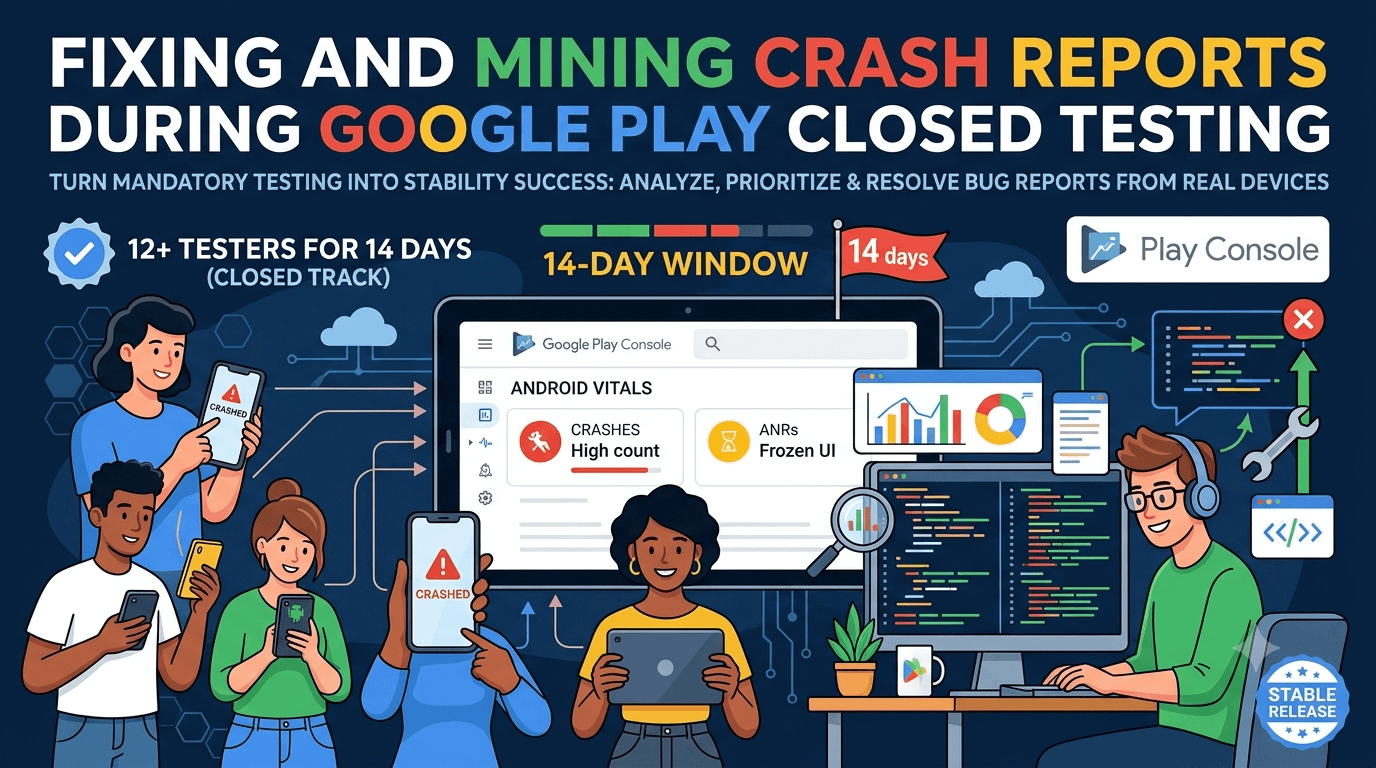
One of the most valuable byproducts of closed testing is real crash data from real devices, and using it well means you enter production with a stable app instead of discovering your worst bugs when thousands of users hit them at once. Your testers, using their own varied hardware over 14 days, will surface crashes and ANRs that never appeared on your development device — and the Play Console hands you the reports to fix them. Because any app from a new personal account must complete a closed test with at least 12 testers opted in for 14 continuous days before production access, this guide shows how to turn that mandatory window into a crash-fixing opportunity.
The closed-testing process is the same for everyone, but developers who mine their crash reports launch far more stable apps than those who only watch the tester count. Using the window to fix crashes before production is one of the highest-return things you can do.
The requirement and crash data
The closed-testing requirement is tied to your developer account type, so any app on a new personal account must complete a closed test with 12+ testers for 14 continuous days before production access. See the closed testing guide. The happy side effect is that during those 14 days, your testers generate genuine crash and ANR data across diverse devices — a preview of your production stability that you should use to fix problems before they scale.
Standard advice applies: recruit committed, device-diverse testers, keep your count above 12, and prepare your listing in parallel. Device diversity matters especially here, because crashes often cluster on specific manufacturers, Android versions, or hardware you do not own.
Where crash reports come from
The Play Console's Android vitals section aggregates crashes and ANRs reported from your testers' devices, grouping them into clusters with stack traces, affected device and Android-version breakdowns, and frequency. This is your primary source during closed testing. Many developers also integrate a dedicated crash-reporting SDK (such as Firebase Crashlytics) for richer, faster reporting including custom logs and non-fatal errors, which complements vitals with more detail and immediacy. Between the two, you get both breadth and depth on what is failing. See Google's crash monitoring guidance.
Whichever sources you use, the goal is the same: see every crash your testers hit, understand where and why it happens, and fix the ones that matter most. Set up your crash reporting before or at the start of your window so you capture data from day one rather than realizing late that you were not collecting it. Good instrumentation is the foundation of using the window well. See analytics and SDK testing.
Reading and prioritizing crashes
Not all crashes are equal, so prioritize by impact. A crash affecting many sessions or many users, or one on a launch or core flow, matters far more than a rare edge case on a single device. Vitals and crash SDKs rank clusters by frequency and reach, so start at the top: the crashes hitting the most testers or the most critical paths. For each, read the stack trace to locate the failure, note which devices and Android versions are affected (a crash isolated to one manufacturer or OS version narrows the cause), and reproduce it if you can.
| Crash factor | Why it matters |
|---|---|
| Sessions/users affected | Higher reach = higher priority |
| Where it occurs | Launch/core flow crashes are critical |
| Device/OS clustering | Narrows the root cause |
| ANRs | Frozen UI — often main-thread work |
Fix the highest-impact clusters first; do not get lost in rare edge cases. See dashboard metrics explained.
Understanding ANRs
ANRs — "Application Not Responding" — occur when your app's main thread is blocked long enough that the system offers to close it, and they are as damaging to the user experience as crashes because the app appears frozen. Common causes are heavy work on the main thread: slow disk or network operations, large computations, or database queries that should run in the background. Vitals reports ANRs separately from crashes, and you should treat a high ANR rate as seriously as a high crash rate, since both drive uninstalls and can affect your standing.
To fix ANRs, identify what is blocking the main thread from the reports and move that work off it — use background threads or asynchronous APIs for I/O and heavy computation, and keep the UI thread responsive. Because ANRs often depend on device speed and real data volumes, they surface more readily on your testers' varied, sometimes slower devices than on a fast development machine. Using the window to catch and fix ANRs across real hardware is essential to a smooth-feeling app. See performance testing.
Fix, redeploy, and verify
Fixing a crash is only half the job; you must verify the fix under the same real conditions that surfaced it. When you address a crash or ANR, ship an updated build to your testers and watch vitals to confirm the cluster's rate drops and does not reappear. This closed loop — observe, fix, redeploy, verify — is what actually improves stability, as opposed to fixing something in isolation and hoping. Communicate to testers what you fixed and ask them to retry the affected flow, which both validates the fix and keeps them engaged.
You can update your app during the window without resetting your requirement clock, so iterate freely: each build that reduces crashes makes your eventual production release safer. By the end of your 14 days, aim to have your top crash and ANR clusters resolved and your rates trending down, so you promote a genuinely stable build. See updating mid-testing.
Device diversity finds more crashes
The more device-diverse your testers, the more crashes you will catch, because bugs cluster on specific hardware, manufacturers, and Android versions. Recruit 12+ committed, device-diverse testers for 14 continuous days, keep a buffer above 12, and keep them engaged so they actually use the app and generate data. A homogeneous tester group (all recent flagship phones, say) will miss the crashes that hit older or off-brand devices in production.
If assembling a genuinely device-diverse group is your bottleneck, a service that supplies verified real testers across varied hardware maximizes the crashes you surface before launch. You can submit your app to get started, and read where to find real testers and how to keep testers engaged.
Making the 14-day window count
Because the requirement forces you to test anyway, treat the window as a crash-hunting opportunity rather than a waiting period. Instrument your app, watch vitals and your crash SDK daily, prioritize by impact, fix the top clusters, and verify each fix with a fresh build. A well-run window means you drive your crash and ANR rates down before a single production user is affected, which is exactly the stability head start closed testing is designed to give you.
Enter production with your top crashes resolved and your rates low, and you avoid the brutal early reviews and uninstalls that an unstable launch produces. The 14 days are an investment in the stability that underpins every other aspect of your app's success. See the testing checklist.
Turning tester feedback into reproductions
Stack traces tell you where a crash happened; tester feedback often tells you how to reproduce it. Give testers an easy way to report what they were doing when the app crashed or froze, and pair those reports with the matching vitals cluster to reconstruct the exact steps. A reproducible crash is a fixable crash, and testers' descriptions frequently turn an opaque stack trace into an obvious bug. Ask specific questions when a cluster is hard to reproduce.
Then close the loop by telling testers when you have fixed what they reported and asking them to confirm. This both validates your fix on the device that hit it and keeps testers motivated by showing their reports matter. An app that enters production having reproduced and fixed its testers' crashes launches genuinely hardened. See keeping testers engaged.
Catch crashes on internal testing first
The internal testing track is faster than the closed track, so use it to catch the obvious crashes before your counted 14-day window begins. Upload there, review the pre-launch report (which crashes your app across Google's device lab) and early vitals, and fix the glaring failures first. This means your closed test starts from a more stable baseline and your testers' data reflects real edge cases rather than crashes you could have caught alone. Catching crashes privately protects your testers' goodwill and your window's value. See pre-launch report vs closed testing.
A practical rhythm is to stabilize each build on the internal track, then promote it to the closed track where diverse real devices surface the deeper, hardware-specific crashes. See internal vs closed testing.
After launch: vitals never stops
Your closed test is the start of stability work, not the end. After launch, Android vitals continues reporting crashes and ANRs from your full, even more diverse user base, and new clusters will appear as more devices and usage patterns hit your app. Keep watching vitals, prioritize and fix new crashes promptly, and use staged rollouts so a regression is caught while contained. An app whose developer keeps fixing crashes stays stable and well-rated as it grows; one that stops watching accumulates the crashes that erode its reputation. See post-launch monitoring.
Native crashes and non-fatal errors
Not every stability problem is a clean Java or Kotlin exception. Apps using native code, the NDK, or third-party native libraries can suffer native crashes that produce less readable, symbol-based stack traces, and diagnosing these often requires uploading debug symbols so the reports become intelligible. If your app or its dependencies include native components, ensure your crash reporting captures native crashes and that you provide the symbols needed to interpret them, or you will see frequent but undiagnosable failures.
It is also worth tracking non-fatal errors — caught exceptions and handled failures that do not crash the app but signal something going wrong. A crash SDK like Crashlytics lets you log these, and during closed testing they can reveal problems that are quietly degrading the experience without an outright crash. Watching both fatal and non-fatal signals across your testers' devices gives you the fullest picture of your app's real-world health before you promote to production. See performance testing.
Key takeaways
- The 12-tester, 14-day requirement applies, and it yields real crash data — use it.
- Watch Android vitals and a crash SDK for clusters, stack traces, and device breakdowns.
- Prioritize by impact — fix the highest-reach and core-flow crashes first.
- Treat ANRs as seriously as crashes — move heavy work off the main thread.
- Fix, redeploy, and verify each cluster's rate drops before production.
Frequently asked questions
Where do I see crashes during closed testing?
In the Play Console's Android vitals, which aggregates crashes and ANRs from your testers, optionally supplemented by a crash SDK like Crashlytics.
Which crashes should I fix first?
Those affecting the most sessions or users, and any on launch or core flows. Prioritize reach and criticality over rare edge cases.
What is an ANR?
"Application Not Responding" — the main thread is blocked too long and the app appears frozen. Fix by moving heavy work off the main thread.
Can I update my app to fix crashes mid-test?
Yes. You can ship new builds during the window without resetting your requirement clock, so iterate and verify fixes with your testers.
Why do testers find crashes I never saw?
Because crashes cluster on specific devices, manufacturers, and Android versions you may not own. Device-diverse testers surface them.
How do I verify a crash is fixed?
Ship the fix to testers and confirm the cluster's rate drops in vitals without reappearing, ideally with testers reconfirming the flow.
Should I catch crashes on internal testing first?
Yes. Fix the obvious crashes on the faster internal track and via the pre-launch report before your counted window begins.
How do I diagnose native crashes?
Ensure your crash reporting captures native crashes and upload debug symbols so the symbol-based stack traces become readable and diagnosable.
Should I track non-fatal errors too?
Yes. Caught exceptions and handled failures signal problems that degrade the experience without crashing. Logging them reveals issues vitals alone would miss.
Expanded for topical authority — additional practical sections below. Original guide content above is unchanged.
Quick answer
Crash Reports During Closed Testing: Fix Before Production matters because Google Play production access for many new personal developer accounts depends on a successful closed test: at least 12 real testers opted in for 14 continuous days, plus a policy-compliant, stable app. Use this guide to execute the steps correctly, avoid streak-breaking mistakes, and decide whether DIY recruitment or a managed closed testing service is the better path for your deadline.
Real-world scenarios: who this matters for
The guidance in this article on Crash Reports During Closed Testing: Fix Before Production applies across many Android product types. Use these scenarios to map the advice to your situation.
| Developer type | Typical challenge | Practical focus |
|---|---|---|
| Indie / solo | Limited tester network and time | Start closed testing early; keep a buffer above 12 opted-in testers; parallelize listing + Data safety work |
| Startup | Launch deadline vs 14-day rule | Treat the window as fixed; recruit in parallel with QA; avoid last-minute track setup |
| Agency / white-label | Multiple client apps, each needing its own test | One closed test per app; standardize opt-in onboarding; track eligibility dates per client |
| Flutter / React Native | Cross-platform build + Play Console quirks | Ship a signed AAB to closed testing; verify installs from Play, not sideload; watch vitals on mid-range devices |
| Native Kotlin | Device/API fragmentation | Cover API levels and OEMs in your tester mix; fix crashes before requesting production |
| Game / Unity | Performance + retention during 14 days | Keep testers engaged so count never dips below 12; monitor ANRs and battery |
| E-commerce / fintech | Policy + payment flows | Test checkout, permissions, and declarations carefully before production access |
| Healthcare / kids / education | Sensitive policies (Families, data) | Align listing, privacy, and content rating with real app behavior during the test window |
Visual placeholder: Scenario matrix infographic — Indie / Startup / Agency / Cross-platform paths for Crash Reports During Closed Testing: Fix Before Production.
Comparison: rejection / eligibility categories
Problems related to Crash Reports During Closed Testing: Fix Before Production usually fall into a few buckets. Classify first, then fix — mixing categories wastes review cycles.
| Category | What Google is signaling | Primary fix | Avoid |
|---|---|---|---|
| Testing eligibility | Closed test incomplete / not continuous | Restore 12+ opted-in for 14 continuous days | Requesting production early |
| Policy / content | App or listing violates Play policy | Change product/listing to comply | Resubmitting unchanged |
| Declarations | Data safety, permissions, or rating mismatch | Align forms with real behavior | Copy-pasting inaccurate answers |
| Stability / quality | Crashes, broken core flows | Fix build; re-test on closed track | Ignoring tester crash reports |
| Metadata / listing | Misleading or stuffed listing | Clean title, description, graphics | Keyword stuffing |
Visual placeholder: Flowchart — diagnose rejection category → fix → retest → re-request.
Common mistakes (and how to avoid them)
These mistakes repeatedly show up when developers work through Crash Reports During Closed Testing: Fix Before Production:
- Confusing invited vs opted-in testers — Only testers who open the opt-in link and install from Play count toward 12. Check the opted-in number in Play Console, not your email list.
- Recruiting exactly 12 with no buffer — One uninstall can break continuity. Aim for ~15 active opted-in testers.
- Starting the counted clock late — Listing assets, Data safety, and privacy work should run during the 14 days, not after.
- Using sideloaded APKs or fake installs — They do not satisfy Play’s closed testing expectations and can create account risk.
- Ignoring tester feedback until day 14 — Crashes that drive uninstalls threaten your streak and your review outcome.
- Requesting production access before the continuous streak completes — Eligibility checks fail even if calendar time has passed.
Troubleshooting checklist
If something feels “stuck” while applying Crash Reports During Closed Testing: Fix Before Production, walk this list before changing strategy:
| Symptom | Likely cause | Fix |
|---|---|---|
| Console shows < 12 testers | Invites sent but not opted in | Resend opt-in link; confirm install from Play |
| “Not eligible” after 14 calendar days | Count dipped below 12 mid-window | Restore 12+ and complete a full continuous streak |
| Tester cannot join | Wrong account, Group lag, or track not published | Verify Google account, Group membership, track release |
| App fails to install | Device/API mismatch or signing issue | Check AAB, minSDK, Play App Signing |
| Production still rejected after testing | Policy, declarations, or stability — not the clock | Read the exact reason; fix that category completely |
Visual placeholder: Troubleshooting flowchart for Crash Reports During Closed Testing: Fix Before Production.
Action checklist
Use this checklist alongside the rest of this guide on Crash Reports During Closed Testing: Fix Before Production:
- ☐ Closed testing track created with a signed release (AAB)
- ☐ Opt-in link tested on a fresh Google account
- ☐ At least 12 testers opted in (prefer ~15)
- ☐ Daily check that opted-in count stays ≥ 12 for 14 continuous days
- ☐ Core flows exercised (login, main feature, permissions, offline/online)
- ☐ Crashes / ANRs triaged from tester reports and vitals
- ☐ Store listing, screenshots, and feature graphic drafted
- ☐ Privacy policy + Data safety + content rating aligned with real behavior
- ☐ Production access requested only after eligibility is green
- ☐ Staged rollout plan ready for first public release
Additional FAQs developers ask about Crash Reports During Closed Testing: Fix Before Production
Quick answer: what should I do first?
Confirm you are on a closed testing track with real opted-in installs, keep 12+ testers for 14 continuous days, and fix policy/stability issues in parallel. Then use the detailed sections above for Crash Reports During Closed Testing: Fix Before Production.
Does this apply to organization (company) accounts?
The classic 12×14 closed testing gate is primarily associated with new personal developer accounts. Always verify your account type and current Play Console eligibility messaging for your app.
Do friends and family count as testers?
Yes — if they opt in via your closed testing link and install from Google Play. They only help if they stay opted in for the continuous period.
Can I update the app during the 14 days?
You can usually push updates on the closed track, but unstable releases that cause uninstalls can threaten your tester count. Prefer polishing via internal testing first when possible.
What if production access is still rejected?
Read the exact reason. Incomplete testing is only one category — policy, Data safety mismatches, and crashes are common. Fix the cited issue fully before reapplying.
Is paying for testers allowed?
Using real people who install from Play is what matters. Avoid fake install farms. A one-time managed service that supplies real closed testers is a practical option when DIY recruitment is too slow.
How is Fast Testers different from free communities?
Free communities trade time and mutual availability. Fast Testers assigns about 15 real testers after you submit a valid closed testing link (one-time $15 per app) and includes a production access guarantee under its refund terms.
Where should I go next?
Review the related guides below, then either finish DIY recruitment or start closed testing if you need speed and continuity.
Sources, updates, and how to use this guide
This article on Crash Reports During Closed Testing: Fix Before Production is maintained for Android developers preparing Google Play closed testing and production access. Always cross-check eligibility text inside your own Play Console, because Google’s UI labels and account rules can vary by account type and date.
- Primary official references: Google Play closed testing help, Developer Program Policies, and Play Console eligibility messaging for your app.
- Practical experience lens: guidance here reflects common failure modes indie developers and agencies hit when recruiting testers, maintaining the 14-day streak, and recovering from production-access rejections.
- Last reviewed focus: 12×14 closed testing continuity, real vs fake testers, and parallel listing/compliance work during the window.
Related guides and next steps
Continue building topical depth around Crash Reports During Closed Testing: Fix Before Production with these Fast Testers resources:
- Analytics Sdk Testing During Closed Testing
- Closed Testing Vs Open Testing On Google Play
- Deep Link Testing Before Google Play Production
- Google Play Android Vitals During Closed Testing
- Google Play Internal Testing Vs Closed Testing
- Google Play Policy Violations During Closed Testing
- Accessibility Testing Before Play Store Launch
- App Bundle Vs Apk For Closed Testing Releases
- Pricing — $15 closed testing
- How Fast Testers works
- FAQ
- Developer reviews
- Case studies
- Submit your app / start closed testing
Need reliable testers so your 14-day streak does not stall? Educate first with the guides above, then start when you are ready — one-time pricing, real Play installs, dashboard tracking.
Internal navigation hub — added to strengthen topical connections. Original article content above is unchanged.
Continue learning
- Google Play Policy Violations During Closed Testing — Can you get policy violations during closed testing? Yes. Learn which Google Play policies apply during testin.
- Closed Testing Completed but Still Rejected? Do This — Completed closed testing but Google still rejected production access? Here are the real reasons and a step-by-.
- Analytics SDK Testing During Closed Testing — Learn about analytics integration QA for Google Play closed testing. Complete guide for Android developers pub.
- App Not Eligible for Production Access? Here Is Why — Seeing "app not eligible for production access" in Play Console? Here are the exact reasons the button is lock.
- App Rejected for Insufficient Testing: What to Do — Learn about insufficient testing rejections for Google Play closed testing. Complete guide for Android develop.
- Google Play Production Access Rejection Reasons — Learn about common rejection causes for Google Play closed testing. Complete guide for Android developers publ.
Next steps
- Ready to run closed testing with real Android testers? Submit your app or see pricing ($15 one-time).
- Compare options on our testing service comparison page, or read developer reviews and case studies.
- Still deciding? Review how Fast Testers works and the FAQ.