
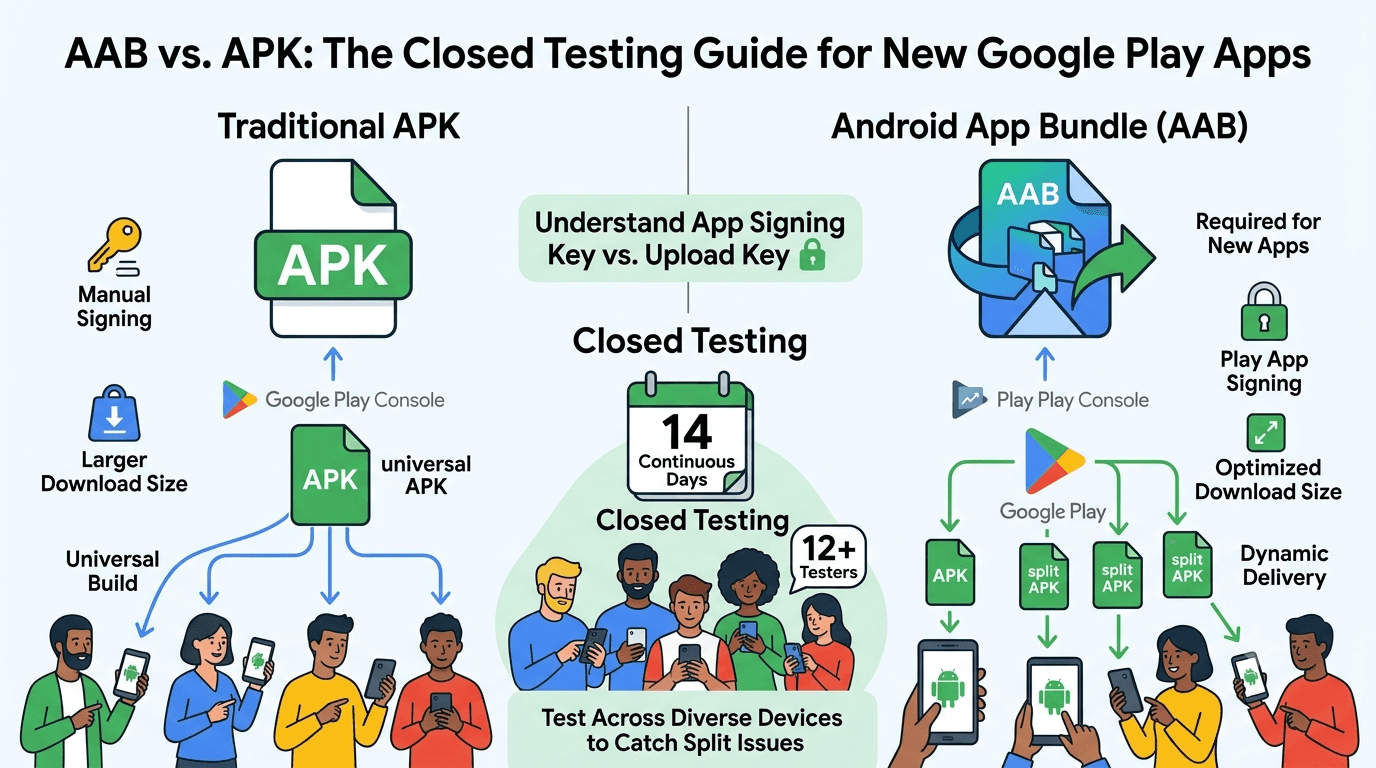
When you prepare a release for Google Play, one of the first decisions is what format to upload — the Android App Bundle (AAB) or a traditional APK — and for new apps the answer is largely settled: Google requires the App Bundle for new apps on Play, and it brings real benefits in download size and delivery. But the distinction still matters for your closed test, because how your app is packaged and signed affects what your testers actually receive and whether features like login work correctly. Like any app published from a new personal account, yours must complete a closed test with at least 12 testers opted in for 14 continuous days before production access. This guide explains App Bundle vs APK for your closed-testing releases.
The closed-testing process is the same regardless of format, but understanding the bundle model prevents the signing and delivery confusion that trips up first-time publishers. Using your window to confirm the right build reaches testers correctly turns the mandatory wait into a smooth foundation for launch.
The requirement and your build format
The closed-testing requirement is tied to your developer account type, so any app on a new personal account must complete a closed test with 12+ testers for 14 continuous days before production access, whatever format you upload. See the closed testing guide. Getting your build format and signing right from the first closed-testing upload avoids problems that would otherwise surface only when you try to move to production.
Standard advice applies: recruit committed, device-diverse testers, keep your count above 12, and prepare your listing in parallel. Uploading a correctly configured App Bundle from the start means the build your testers install is representative of what production users will get.
What the App Bundle is
The Android App Bundle is a publishing format that contains all your app's compiled code and resources but defers APK generation to Google Play. When a user installs, Play generates and serves an optimized APK tailored to their device — only the screen density, CPU architecture, and language resources they need — which meaningfully reduces download and install size compared with a universal APK containing everything for every device. For new apps, uploading an AAB is required rather than optional. Follow Google's App Bundle documentation.
Because Play generates the actual APKs from your bundle, Play must be able to sign them, which is where Play App Signing comes in. This is the single biggest conceptual shift for developers used to building and signing a final APK themselves: with bundles, you upload signed with your upload key, and Google re-signs the delivered APKs with the app signing key. Understanding this split is essential to avoiding the signing confusion that blocks many first releases. See Play App Signing setup.
App Bundle vs APK at a glance
While new apps must use the App Bundle for distribution on Play, APKs still have their place — chiefly for local testing, sideloading, and distribution outside Play. Understanding when each applies keeps your workflow clear.
| Aspect | App Bundle (AAB) | APK |
|---|---|---|
| Required for new Play apps | Yes | No |
| Signing of delivered app | Play App Signing | You sign the final APK |
| Download size | Optimized per device | Universal, larger |
| Local install / sideload | Needs conversion | Direct install |
| Advanced delivery features | Supported | Not supported |
For Play distribution, upload an AAB; keep APKs for local device testing. See sideloading vs Play testing.
What testers actually receive
Because Play generates device-specific APKs from your bundle, your testers do not all download an identical file — each gets an APK optimized for their device, exactly as production users will. This is actually a benefit for testing: your closed test exercises the same split-APK delivery mechanism that production uses, so you validate that your app installs and runs correctly across the device variations Play serves. Confirm during your window that testers on different architectures, densities, and languages all receive working installs.
Occasionally, delivery-related bugs surface here — a resource that was in a universal APK but is now split out and missing on some configuration, or a native library packaged for the wrong architecture. These are precisely the issues a device-diverse closed test catches, because they only manifest on the device configurations that receive a particular split. Testing your bundle across varied real devices during the window is how you confirm the delivery mechanism works for everyone. See device testing.
Setting up your closed-testing track
Once your signed App Bundle is ready, create a closed-testing track in the Play Console and upload it, opt into Play App Signing if prompted, add testers by email or Google Group, and share the opt-in link each tester must use before installing. Correct configuration matters because the 14-day clock counts only opted-in testers, and a misconfigured track is a common reason developers realize late that their timer never started. Install from the listing on a couple of real devices to confirm the generated APKs work before inviting your full group. See how to create a closed testing track.
Give testers clear onboarding instructions and ask them to confirm the install completes and the app launches on their device. Every failed opt-in is a tester who does not count toward your 12, so smooth guidance maximizes active testers from day one and gives you the device diversity that validates bundle delivery.
Recruiting and managing the window
You need 12+ committed, device-diverse testers for 14 continuous days, and device diversity is especially useful for validating that your bundle delivers correctly across configurations. Recruit a buffer above 12, keep testers engaged with clear tasks and quick responses, and confirm installs succeed everywhere. Monitor your active count in the Play Console and recruit replacements early if it slips.
If assembling a device-diverse group is your bottleneck, a service that supplies verified real testers solves it quickly. You can submit your app to get started, and read where to find real testers and how to keep testers engaged.
Common bundle and signing pitfalls
The most common pitfalls are: confusing the upload key with the app signing key, so Google Sign-In or other fingerprint-dependent features fail because you registered the wrong SHA; assuming you can just upload an APK for a new app when a bundle is required; native libraries or resources missing on certain splits; and testing only a universal APK locally and never validating the actual Play-delivered splits. Each is avoidable, and each is far cheaper to catch during your window than at the moment you try to go to production.
Use the 14 days to confirm your signing is correct (register the app signing key's fingerprints, not just the upload key), your bundle installs correctly across devices, and nothing is missing on any split. Catching these before production is what ensures your move from closed testing to launch is a formality rather than a scramble. See the testing checklist.
Making the 14-day window count
Because the requirement forces you to test anyway, use the window to validate the exact delivery mechanism production will use. Since Play serves device-specific APKs from your bundle to both testers and production users, a clean closed test across diverse devices is strong evidence your app installs and runs correctly for everyone. A well-run window turns a mandatory delay into confidence in your packaging and signing.
Enter production having confirmed your bundle delivers working installs across configurations and your signing is correct, and your launch is a smooth promotion rather than a debugging session. The 14 days are an investment in a solid release foundation. See the Play Console beginner guide.
Turning tester feedback into fixes
Give testers a frictionless way to report problems and ask specific questions: did the install complete, did the app launch, did anything look missing or broken on your device? Concrete questions produce the actionable reports that let you catch the split-delivery and resource issues most likely to affect a bundle-distributed app.
Then close the loop: when you ship a build addressing reported issues, tell testers what changed and ask them to reconfirm the install on their device. This validates fixes across configurations and keeps testers engaged. An app that enters production having confirmed clean bundle delivery launches without install surprises. See fixing crashes before production.
Use internal testing before your closed test
The Play Console's internal testing track is faster than the closed track and ideal for a first pass, and it uses the same bundle-and-signing pipeline, so it is the perfect place to confirm your App Bundle uploads, signs, and installs correctly before your counted 14-day window begins. Catching a signing misconfiguration or a broken split privately, rather than during your closed test, protects your testers' goodwill and prevents wasting days of your continuous window on a build that will not install.
A practical rhythm is to validate each release candidate as a bundle on the internal track, confirm installs on a couple of real devices, then promote it to the closed track where your device-diverse testers validate delivery broadly. This staging discipline keeps the closed track stable and your feedback focused on real device coverage. See internal vs closed testing.
After launch: bundles keep working
Your closed test is the start of quality assurance, not the end. After launch, the same bundle pipeline serves your production users, and each update you upload as a bundle is re-signed and split by Play automatically. Keep watching Android vitals and reviews for any install or device-specific problems, especially after adding new resources or native code that could affect splits. An app that maintains a clean bundle across updates keeps installing reliably for everyone; one that introduces a split-specific bug ships breakage to a subset of devices. See post-launch monitoring.
Key takeaways
- The 12-tester, 14-day requirement applies whatever format you upload.
- New Play apps must use the App Bundle, not a plain APK.
- Play App Signing splits upload key from app signing key — register the right fingerprints.
- Testers receive device-optimized APKs, validating real delivery.
- Test bundle delivery across diverse devices to catch split-specific issues.
Frequently asked questions
Do I have to use an App Bundle?
Yes, for new apps on Google Play. The AAB is required; plain APK uploads are not accepted for new apps.
What is the difference between the upload key and app signing key?
You sign your bundle with the upload key; Google re-signs the delivered APKs with the app signing key. Register the app signing key's fingerprints with services like Google Sign-In.
Do my testers all download the same file?
No. Play generates a device-optimized APK from your bundle for each tester, exactly as it will for production users.
Can I still use APKs at all?
Yes, for local testing, sideloading, and distribution outside Play, but not for distributing a new app on Play itself.
Why does a resource go missing on some devices?
Because it was split out of the universal APK and not included correctly for that configuration. Test across diverse devices to catch it.
Should I test bundles on internal testing first?
Yes. Confirm your bundle uploads, signs, and installs on the faster internal track before your counted closed-testing window begins.
Does the bundle reduce app size?
Yes. Users download only the code and resources their device needs, which is typically smaller than a universal APK.
How do I install a bundle on my own device to test?
Use Android Studio, which builds and installs the right APK, or generate an APK set with bundletool. Play itself handles this automatically for testers.
Do advanced delivery features require the bundle?
Yes. Features like dynamic feature modules and asset delivery are only supported with the App Bundle format, not plain APKs.
Can I switch from APK to App Bundle later?
For a new app you must start with the bundle. Existing older apps can migrate, but new apps have no APK-only path on Play.
Why does a native library crash on some devices only?
Likely because it was packaged for the wrong architecture split. Test across ABIs so each device receives a working native library.
Expanded for topical authority — additional practical sections below. Original guide content above is unchanged.
Quick answer
App Bundle vs APK for Closed Testing Releases matters because Google Play production access for many new personal developer accounts depends on a successful closed test: at least 12 real testers opted in for 14 continuous days, plus a policy-compliant, stable app. Use this guide to execute the steps correctly, avoid streak-breaking mistakes, and decide whether DIY recruitment or a managed closed testing service is the better path for your deadline.
Real-world scenarios: who this matters for
The guidance in this article on App Bundle vs APK for Closed Testing Releases applies across many Android product types. Use these scenarios to map the advice to your situation.
| Developer type | Typical challenge | Practical focus |
|---|---|---|
| Indie / solo | Limited tester network and time | Start closed testing early; keep a buffer above 12 opted-in testers; parallelize listing + Data safety work |
| Startup | Launch deadline vs 14-day rule | Treat the window as fixed; recruit in parallel with QA; avoid last-minute track setup |
| Agency / white-label | Multiple client apps, each needing its own test | One closed test per app; standardize opt-in onboarding; track eligibility dates per client |
| Flutter / React Native | Cross-platform build + Play Console quirks | Ship a signed AAB to closed testing; verify installs from Play, not sideload; watch vitals on mid-range devices |
| Native Kotlin | Device/API fragmentation | Cover API levels and OEMs in your tester mix; fix crashes before requesting production |
| Game / Unity | Performance + retention during 14 days | Keep testers engaged so count never dips below 12; monitor ANRs and battery |
| E-commerce / fintech | Policy + payment flows | Test checkout, permissions, and declarations carefully before production access |
| Healthcare / kids / education | Sensitive policies (Families, data) | Align listing, privacy, and content rating with real app behavior during the test window |
Visual placeholder: Scenario matrix infographic — Indie / Startup / Agency / Cross-platform paths for App Bundle vs APK for Closed Testing Releases.
Closed testing vs other Play tracks (quick reference)
Context for App Bundle vs APK for Closed Testing Releases: choose the right track so you do not waste the 14-day window on the wrong workflow.
| Track | Purpose | Counts toward 12×14? | Typical use |
|---|---|---|---|
| Internal testing | Fast private builds | No | Shake out bugs before the counted window |
| Closed testing | Private / invite testers | Yes (for new personal accounts) | Meet production-access requirement + QA |
| Open testing | Public beta | Not a substitute for the closed requirement | Broader feedback after closed eligibility |
| Production | Public release | N/A | After access approved + review |
Visual placeholder: Timeline — Internal → Closed (14 days) → Production request → Staged rollout.
Common mistakes (and how to avoid them)
These mistakes repeatedly show up when developers work through App Bundle vs APK for Closed Testing Releases:
- Confusing invited vs opted-in testers — Only testers who open the opt-in link and install from Play count toward 12. Check the opted-in number in Play Console, not your email list.
- Recruiting exactly 12 with no buffer — One uninstall can break continuity. Aim for ~15 active opted-in testers.
- Starting the counted clock late — Listing assets, Data safety, and privacy work should run during the 14 days, not after.
- Using sideloaded APKs or fake installs — They do not satisfy Play’s closed testing expectations and can create account risk.
- Ignoring tester feedback until day 14 — Crashes that drive uninstalls threaten your streak and your review outcome.
- Requesting production access before the continuous streak completes — Eligibility checks fail even if calendar time has passed.
Troubleshooting checklist
If something feels “stuck” while applying App Bundle vs APK for Closed Testing Releases, walk this list before changing strategy:
| Symptom | Likely cause | Fix |
|---|---|---|
| Console shows < 12 testers | Invites sent but not opted in | Resend opt-in link; confirm install from Play |
| “Not eligible” after 14 calendar days | Count dipped below 12 mid-window | Restore 12+ and complete a full continuous streak |
| Tester cannot join | Wrong account, Group lag, or track not published | Verify Google account, Group membership, track release |
| App fails to install | Device/API mismatch or signing issue | Check AAB, minSDK, Play App Signing |
| Production still rejected after testing | Policy, declarations, or stability — not the clock | Read the exact reason; fix that category completely |
Visual placeholder: Troubleshooting flowchart for App Bundle vs APK for Closed Testing Releases.
Action checklist
Use this checklist alongside the rest of this guide on App Bundle vs APK for Closed Testing Releases:
- ☐ Closed testing track created with a signed release (AAB)
- ☐ Opt-in link tested on a fresh Google account
- ☐ At least 12 testers opted in (prefer ~15)
- ☐ Daily check that opted-in count stays ≥ 12 for 14 continuous days
- ☐ Core flows exercised (login, main feature, permissions, offline/online)
- ☐ Crashes / ANRs triaged from tester reports and vitals
- ☐ Store listing, screenshots, and feature graphic drafted
- ☐ Privacy policy + Data safety + content rating aligned with real behavior
- ☐ Production access requested only after eligibility is green
- ☐ Staged rollout plan ready for first public release
Additional FAQs developers ask about App Bundle vs APK for Closed Testing Releases
Quick answer: what should I do first?
Confirm you are on a closed testing track with real opted-in installs, keep 12+ testers for 14 continuous days, and fix policy/stability issues in parallel. Then use the detailed sections above for App Bundle vs APK for Closed Testing Releases.
Does this apply to organization (company) accounts?
The classic 12×14 closed testing gate is primarily associated with new personal developer accounts. Always verify your account type and current Play Console eligibility messaging for your app.
Do friends and family count as testers?
Yes — if they opt in via your closed testing link and install from Google Play. They only help if they stay opted in for the continuous period.
Can I update the app during the 14 days?
You can usually push updates on the closed track, but unstable releases that cause uninstalls can threaten your tester count. Prefer polishing via internal testing first when possible.
What if production access is still rejected?
Read the exact reason. Incomplete testing is only one category — policy, Data safety mismatches, and crashes are common. Fix the cited issue fully before reapplying.
Is paying for testers allowed?
Using real people who install from Play is what matters. Avoid fake install farms. A one-time managed service that supplies real closed testers is a practical option when DIY recruitment is too slow.
How is Fast Testers different from free communities?
Free communities trade time and mutual availability. Fast Testers assigns about 15 real testers after you submit a valid closed testing link (one-time $15 per app) and includes a production access guarantee under its refund terms.
Where should I go next?
Review the related guides below, then either finish DIY recruitment or start closed testing if you need speed and continuity.
Sources, updates, and how to use this guide
This article on App Bundle vs APK for Closed Testing Releases is maintained for Android developers preparing Google Play closed testing and production access. Always cross-check eligibility text inside your own Play Console, because Google’s UI labels and account rules can vary by account type and date.
- Primary official references: Google Play closed testing help, Developer Program Policies, and Play Console eligibility messaging for your app.
- Practical experience lens: guidance here reflects common failure modes indie developers and agencies hit when recruiting testers, maintaining the 14-day streak, and recovering from production-access rejections.
- Last reviewed focus: 12×14 closed testing continuity, real vs fake testers, and parallel listing/compliance work during the window.
Related guides and next steps
Continue building topical depth around App Bundle vs APK for Closed Testing Releases with these Fast Testers resources:
- Analytics Sdk Testing During Closed Testing
- Closed Testing Vs Open Testing On Google Play
- Google Play Internal Testing Vs Closed Testing
- Ar Vr Android Apps And Closed Testing Requirements
- Closed Testing Completed But Still Rejected
- Closed Testing Track Not Showing
- Closed Testing Vs Apk Sharing
- Closed Testing Vs Firebase App Distribution
- Pricing — $15 closed testing
- How Fast Testers works
- FAQ
- Developer reviews
- Case studies
- Submit your app / start closed testing
Need reliable testers so your 14-day streak does not stall? Educate first with the guides above, then start when you are ready — one-time pricing, real Play installs, dashboard tracking.
Further expansion — case study, decisions, and expert recommendations. Prior sections remain unchanged.
Case study: first Play launch planned around the closed testing window
Problem: A small SaaS team treated Google Play publishing like iOS TestFlight — they expected to upload and go public the same week. They discovered the personal-account closed testing gate mid-sprint.
Solution: They reframed the sprint around App Bundle Vs APK For Closed Testing Releases: internal testing for crash triage first, then closed testing with a buffer of testers, while design finished screenshots and legal finished privacy/Data safety in parallel.
Result: The 14-day requirement stopped feeling like “dead time.” When eligibility flipped green, listing and declarations were already ready, so production review was the only remaining gate.
Lessons learned:
- Start the closed track as soon as the build is stable enough to keep installed.
- Parallelize compliance work inside the window.
- Protect the streak like a production SLA.
Decision guide: what should you do next?
Use this decision path when applying App Bundle Vs APK For Closed Testing Releases:
- Is your account a new personal developer account that still needs production access?
If yes, plan for closed testing with 12+ opted-in testers for 14 continuous days. If no, still test — but confirm the exact eligibility text in Play Console. - Do you already have 12+ reliable people who will install from Play and stay for two weeks?
If yes, DIY can work — add a buffer and monitor daily. If no, use community exchange or a managed closed testing service. - Is your build stable enough that testers will not churn?
If no, run internal testing first. Entering the counted window with crash loops is how streaks die. - Are Data safety, privacy policy, permissions, and listing aligned with real behavior?
If no, fix during the window so production review does not bounce you after the clock. - Has production access been rejected?
Classify: eligibility vs policy vs declarations vs stability. Fix that category completely, then re-test / re-request.
Visual placeholder: Decision tree diagram for App Bundle Vs APK For Closed Testing Releases (DIY vs managed vs fix-and-retry).
Expert recommendations
- Instrument the streak: Check opted-in count daily for the first week; replace dropouts same day.
- Brief testers once: Send a short checklist (install from Play, open app daily, try core flow, report crashes). Silent testers still count if opted in — engaged testers protect quality.
- Never “solve” recruitment with fake installs: It fails the intent of closed testing and can create account risk.
- Ship a boring-stable build to closed testing: Save experimental features for internal tracks.
- Educate first, then accelerate: If your blocker is simply finding real testers fast, a one-time managed option (Fast Testers: 15 testers, $15/app) is often cheaper than slipping a launch.
For hands-on setup after reading about App Bundle Vs APK For Closed Testing Releases, see how it works and pricing, or submit your closed testing link when you are ready.
Internal navigation hub — added to strengthen topical connections. Original article content above is unchanged.
Continue learning
- Analytics SDK Testing During Closed Testing — Learn about analytics integration QA for Google Play closed testing. Complete guide for Android developers pub.
- Push Notification Testing with Closed Testers — Learn about FCM testing for Google Play closed testing. Complete guide for Android developers publishing on th.
- Dark Mode and Theme Testing on Android — Learn about theme testing for Google Play closed testing. Complete guide for Android developers publishing on .
- Deep Link Testing Before Google Play Production — Learn about deep link QA for Google Play closed testing. Complete guide for Android developers publishing on t.
- Instant Apps and Google Play Testing Considerations — Learn about instant app testing for Google Play closed testing. Complete guide for Android developers publishi.
- Notification Permission Changes and App Testing — Learn about notification permission testing for Google Play closed testing. Complete guide for Android develop.
Next steps
- Ready to run closed testing with real Android testers? Submit your app or see pricing ($15 one-time).
- Compare options on our testing service comparison page, or read developer reviews and case studies.
- Still deciding? Review how Fast Testers works and the FAQ.