
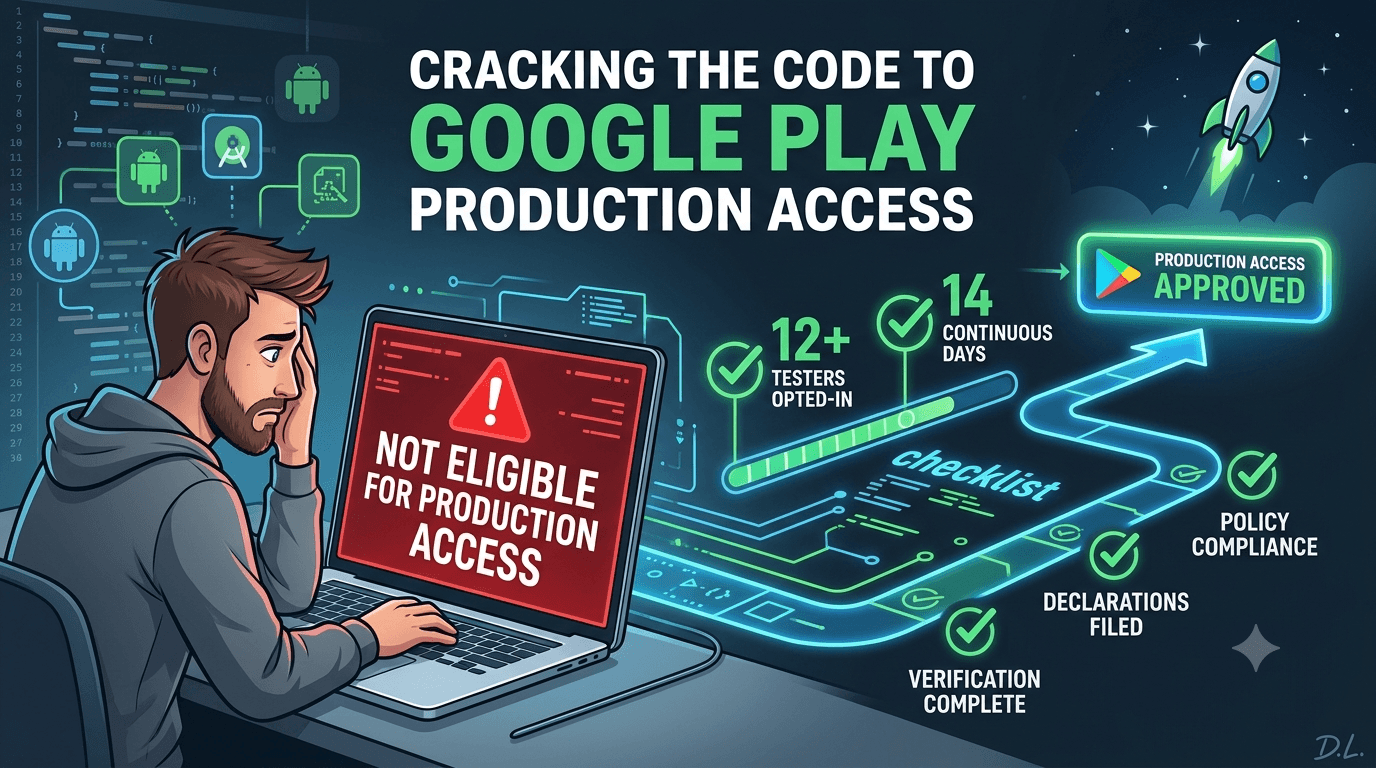
Few messages frustrate a developer more than seeing that their app is "not eligible for production access" in the Play Console. It feels like a wall, but it is almost always a solvable checklist problem rather than a rejection of your app. For new personal accounts, the most common cause is simply that you have not yet completed the required closed test — at least 12 testers opted in for 14 continuous days — before requesting production. Understanding exactly why Google flags eligibility, and what unmet condition triggered it, turns a scary message into a clear next step.
This guide walks through the reasons an app is deemed not eligible for production access, how to diagnose which one applies to you, and how to fix each. The overwhelmingly common cause is the closed-testing requirement, so we start there, then cover the other conditions — verification, declarations, and policy issues — that can gate production. In nearly every case, the fix is to complete a specific requirement correctly, not to abandon your launch.
The most common cause: the closed test
For apps published from new personal accounts, the leading reason for ineligibility is that the mandatory closed test has not been completed. Google requires at least 12 testers opted in for 14 continuous days before you can request production access, and until that condition is genuinely met, the Console will not let you proceed. If you see the ineligibility message, first check whether your closed test has actually satisfied both the tester count and the continuous-day requirement — many developers assume they are done when they are not. See the closed testing guide and Google's closed testing documentation.
Crucially, the 14 days must be continuous days with 12 or more testers opted in. If your count dipped below 12 at any point, the streak may not have completed even though 14 calendar days passed. This subtlety is behind most "but I waited two weeks" confusion. See closed testing completed but still rejected.
Diagnosing a tester-count problem
Open your closed-testing track in the Console and check your active, opted-in tester count. The requirement is about testers who have actually opted in via the link, not merely people you added by email. A frequent mistake is adding 15 emails but having only 8 people actually opt in, leaving you below 12 without realizing it. If your opted-in count is under 12, that is your problem: recruit and onboard more testers until you are safely above the threshold, then let the continuous days accrue. See creating a closed testing track.
Because attrition happens, keep a buffer above 12 so a dropout never silently breaks your streak. If recruiting and retaining 12+ real testers is your bottleneck, a service that supplies verified testers resolves it quickly — you can submit your app to get started. See getting 12 testers.
Diagnosing a continuous-days problem
If your count is fine but you are still ineligible, the issue may be the continuity of your qualifying days. The 14 days must be continuous with 12+ testers throughout; a period where your opted-in count fell below 12 can interrupt the streak, effectively restarting the clock from when you returned above the threshold. Review your tester count over time — if it dipped, that explains the delay. The fix is simply to maintain 12+ testers continuously until a full 14-day streak completes. See keeping testers engaged.
| Symptom | Likely cause | Fix |
|---|---|---|
| Opted-in count under 12 | Not enough testers opted in | Recruit more, keep a buffer |
| 14 days passed, still blocked | Count dipped, breaking continuity | Maintain 12+ continuously for 14 days |
| Testers added but not counting | They never opted in via the link | Ensure each tester opts in |
Understanding continuity is the key to resolving "I waited but it still says not eligible." See what happens after 14 days.
Verification and account issues
Sometimes ineligibility is tied to your account rather than your test. If your developer identity verification is incomplete or your account has an unresolved issue, production access can be blocked regardless of your testing. Check the Console for verification prompts or account notices, and complete any outstanding steps. Because verification can take days, address it as soon as you see a prompt rather than waiting until you are ready to launch. See identity verification.
Confirm too that your account type matches your expectations. The closed-testing requirement applies to new personal accounts, so understanding your account's status helps you interpret which rules apply to you. Resolving account-level issues clears a gate that no amount of testing would open on its own. See the Console beginner guide.
Incomplete declarations and setup
Production access also requires that your app's required declarations and setup are complete: content rating, Data safety form, privacy policy, target audience, and any ads declarations. If these are missing or incomplete, the Console may block production even if your testing is done. Work through the dashboard's task list and finish every required item, ensuring your Data safety form and privacy policy are accurate and consistent. Completing these during your testing window means they are not the thing holding you back at the end. See the Data safety form guide and privacy policy requirements.
These are quick to overlook because they feel like paperwork, but the Console treats them as hard prerequisites. A five-minute check of your task list often reveals the exact unfinished item causing ineligibility. See the first-app checklist.
Policy and content problems
Less commonly, ineligibility or a subsequent rejection stems from a policy or content issue: your app violates a Play policy, your declarations are inconsistent with your app's behavior, or your content rating is inaccurate. These require fixing the underlying issue — bringing your app or declarations into compliance — rather than just completing a checklist step. Review the specific message Google provides, address the cited policy, and resubmit. See closed testing completed but still rejected.
If the problem is a mismatch between what you declared and what your app does (for example, undeclared data collection by an SDK), fix the declaration to match reality. Accuracy is what clears these, and your testing window is the ideal time to audit your app so no such mismatch exists. See SDK testing.
Preventing ineligibility next time
The best fix is prevention. Start your closed test early, recruit a buffer above 12 testers, monitor your opted-in count daily, and keep it above the threshold continuously so your 14-day streak completes without interruption. Complete your verification and all declarations during the window, not at the end. Do these and you will reach the point of requesting production access genuinely eligible, avoiding the frustrating message altogether. See launching fast.
Treat the requirement as a checklist with a clear finish line rather than a vague waiting period, and eligibility becomes predictable. Developers who understand precisely what "complete" means rarely get surprised by an ineligibility flag. See internal vs closed testing.
Use internal testing to prepare
The internal testing track helps you avoid ineligibility indirectly by letting you validate a stable build before your counted closed test, so the closed window is spent satisfying the requirement rather than firefighting bugs that drive testers away. A stable build keeps testers opted in, which keeps your count above 12 and your streak intact — the exact conditions eligibility depends on. Promote the internally validated build to your closed track to preserve what you tested. See internal vs closed testing.
This staging also helps after launch, when the same disciplined pipeline keeps updates from destabilizing your live app. The habits that earn eligibility the first time keep serving you on every release. See updating after release.
After you gain access
Once eligible and approved, use a staged rollout to release gradually and monitor your Android vitals and reviews, so any issue that slipped through reaches only a fraction of users. Eligibility is the gate to production, but a careful rollout is what protects your reputation once you are through it. Keep your declarations current as your app evolves so you do not reintroduce a compliance issue on a future update. See staged rollouts and post-launch monitoring.
Remember that the same eligibility logic can apply to future gated actions, so keep testing, declaring, and monitoring with the same discipline. An app that stays compliant and well-tested rarely hits an eligibility wall again.
Setting the right timeline expectation
Much of the frustration around ineligibility comes from expecting production access the moment 14 calendar days elapse. In reality, the clock starts only once you have 12+ testers actually opted in, so if it took you several days to reach that count, your true completion date is later than you think. On top of the 14 continuous qualifying days, Google's review of your production request adds more days. Setting a realistic expectation — count-start plus 14 continuous days plus review time — prevents the false alarm of thinking you are done when the requirement has not finished accruing. See what happens after 14 days.
The practical takeaway is to date your window from when your opted-in count first reached 12, not from when you created the track or added emails. Track that start date, watch that the count never dips, and you can predict your genuine eligibility date instead of being surprised by an ineligibility message. See launching fast.
Key takeaways
- The usual cause is an incomplete closed test — 12 testers opted in for 14 continuous days.
- Check opted-in count, not emails added; testers must opt in via the link to count.
- Continuity matters — a dip below 12 can break the 14-day streak even after two weeks pass.
- Verification and declarations can also gate production; complete them during the window.
- Prevent it by starting early, keeping a buffer above 12, and finishing all setup before requesting access.
Frequently asked questions
Why does Google say my app is not eligible for production access?
Most often because your required closed test is not complete — you need 12 testers opted in for 14 continuous days before requesting production.
I waited 14 days but it still says not eligible. Why?
Your opted-in tester count likely dipped below 12 at some point, breaking the continuous-day streak. Maintain 12+ continuously for a full 14 days.
Do testers I add by email count automatically?
No. They must actually opt in via the testing link. Check your opted-in count, not the number of emails you added.
Can account verification block production access?
Yes. Incomplete identity verification or account issues can gate production regardless of testing. Resolve any Console prompts promptly.
What else can cause ineligibility?
Incomplete declarations — content rating, Data safety, privacy policy — or a policy/content issue. Finish every required task and fix any cited policy.
How do I avoid this next time?
Start the test early, keep a buffer above 12 testers, monitor the count daily, and complete verification and declarations during the window.
Is ineligibility the same as rejection?
No. Ineligibility means a prerequisite is unmet and fixable, usually the testing requirement. It is a step to complete, not a verdict on your app.
When does the 14-day clock actually start?
When your opted-in tester count first reaches 12, not when you create the track or add emails. Date your window from that point.
Will I get production access the instant 14 days pass?
No. After the continuous 14 days complete, Google still reviews your production request, which adds more days, so plan for review time too.
Can a testing service help me stay eligible?
Yes. A service that supplies verified real testers keeps your opted-in count reliably above 12, protecting the continuity your eligibility depends on.
Does a stable build affect eligibility?
Indirectly, yes. A stable build keeps testers from uninstalling, which keeps your count above 12 and your 14-day streak intact.
Does the requirement apply to organization accounts?
The closed-testing requirement targets new personal accounts. Confirm your account type in the Console to know which rules apply to you.
Expanded for topical authority — additional practical sections below. Original guide content above is unchanged.
Quick answer
App Not Eligible for Production Access? Here Is Why matters because Google Play production access for many new personal developer accounts depends on a successful closed test: at least 12 real testers opted in for 14 continuous days, plus a policy-compliant, stable app. Use this guide to execute the steps correctly, avoid streak-breaking mistakes, and decide whether DIY recruitment or a managed closed testing service is the better path for your deadline.
Real-world scenarios: who this matters for
The guidance in this article on App Not Eligible for Production Access? Here Is Why applies across many Android product types. Use these scenarios to map the advice to your situation.
| Developer type | Typical challenge | Practical focus |
|---|---|---|
| Indie / solo | Limited tester network and time | Start closed testing early; keep a buffer above 12 opted-in testers; parallelize listing + Data safety work |
| Startup | Launch deadline vs 14-day rule | Treat the window as fixed; recruit in parallel with QA; avoid last-minute track setup |
| Agency / white-label | Multiple client apps, each needing its own test | One closed test per app; standardize opt-in onboarding; track eligibility dates per client |
| Flutter / React Native | Cross-platform build + Play Console quirks | Ship a signed AAB to closed testing; verify installs from Play, not sideload; watch vitals on mid-range devices |
| Native Kotlin | Device/API fragmentation | Cover API levels and OEMs in your tester mix; fix crashes before requesting production |
| Game / Unity | Performance + retention during 14 days | Keep testers engaged so count never dips below 12; monitor ANRs and battery |
| E-commerce / fintech | Policy + payment flows | Test checkout, permissions, and declarations carefully before production access |
| Healthcare / kids / education | Sensitive policies (Families, data) | Align listing, privacy, and content rating with real app behavior during the test window |
Visual placeholder: Scenario matrix infographic — Indie / Startup / Agency / Cross-platform paths for App Not Eligible for Production Access? Here Is Why.
Comparison: rejection / eligibility categories
Problems related to App Not Eligible for Production Access? Here Is Why usually fall into a few buckets. Classify first, then fix — mixing categories wastes review cycles.
| Category | What Google is signaling | Primary fix | Avoid |
|---|---|---|---|
| Testing eligibility | Closed test incomplete / not continuous | Restore 12+ opted-in for 14 continuous days | Requesting production early |
| Policy / content | App or listing violates Play policy | Change product/listing to comply | Resubmitting unchanged |
| Declarations | Data safety, permissions, or rating mismatch | Align forms with real behavior | Copy-pasting inaccurate answers |
| Stability / quality | Crashes, broken core flows | Fix build; re-test on closed track | Ignoring tester crash reports |
| Metadata / listing | Misleading or stuffed listing | Clean title, description, graphics | Keyword stuffing |
Visual placeholder: Flowchart — diagnose rejection category → fix → retest → re-request.
Common mistakes (and how to avoid them)
These mistakes repeatedly show up when developers work through App Not Eligible for Production Access? Here Is Why:
- Confusing invited vs opted-in testers — Only testers who open the opt-in link and install from Play count toward 12. Check the opted-in number in Play Console, not your email list.
- Recruiting exactly 12 with no buffer — One uninstall can break continuity. Aim for ~15 active opted-in testers.
- Starting the counted clock late — Listing assets, Data safety, and privacy work should run during the 14 days, not after.
- Using sideloaded APKs or fake installs — They do not satisfy Play’s closed testing expectations and can create account risk.
- Ignoring tester feedback until day 14 — Crashes that drive uninstalls threaten your streak and your review outcome.
- Requesting production access before the continuous streak completes — Eligibility checks fail even if calendar time has passed.
Troubleshooting checklist
If something feels “stuck” while applying App Not Eligible for Production Access? Here Is Why, walk this list before changing strategy:
| Symptom | Likely cause | Fix |
|---|---|---|
| Console shows < 12 testers | Invites sent but not opted in | Resend opt-in link; confirm install from Play |
| “Not eligible” after 14 calendar days | Count dipped below 12 mid-window | Restore 12+ and complete a full continuous streak |
| Tester cannot join | Wrong account, Group lag, or track not published | Verify Google account, Group membership, track release |
| App fails to install | Device/API mismatch or signing issue | Check AAB, minSDK, Play App Signing |
| Production still rejected after testing | Policy, declarations, or stability — not the clock | Read the exact reason; fix that category completely |
Visual placeholder: Troubleshooting flowchart for App Not Eligible for Production Access? Here Is Why.
Action checklist
Use this checklist alongside the rest of this guide on App Not Eligible for Production Access? Here Is Why:
- ☐ Closed testing track created with a signed release (AAB)
- ☐ Opt-in link tested on a fresh Google account
- ☐ At least 12 testers opted in (prefer ~15)
- ☐ Daily check that opted-in count stays ≥ 12 for 14 continuous days
- ☐ Core flows exercised (login, main feature, permissions, offline/online)
- ☐ Crashes / ANRs triaged from tester reports and vitals
- ☐ Store listing, screenshots, and feature graphic drafted
- ☐ Privacy policy + Data safety + content rating aligned with real behavior
- ☐ Production access requested only after eligibility is green
- ☐ Staged rollout plan ready for first public release
Additional FAQs developers ask about App Not Eligible for Production Access? Here Is Why
Quick answer: what should I do first?
Confirm you are on a closed testing track with real opted-in installs, keep 12+ testers for 14 continuous days, and fix policy/stability issues in parallel. Then use the detailed sections above for App Not Eligible for Production Access? Here Is Why.
Does this apply to organization (company) accounts?
The classic 12×14 closed testing gate is primarily associated with new personal developer accounts. Always verify your account type and current Play Console eligibility messaging for your app.
Do friends and family count as testers?
Yes — if they opt in via your closed testing link and install from Google Play. They only help if they stay opted in for the continuous period.
Can I update the app during the 14 days?
You can usually push updates on the closed track, but unstable releases that cause uninstalls can threaten your tester count. Prefer polishing via internal testing first when possible.
What if production access is still rejected?
Read the exact reason. Incomplete testing is only one category — policy, Data safety mismatches, and crashes are common. Fix the cited issue fully before reapplying.
Is paying for testers allowed?
Using real people who install from Play is what matters. Avoid fake install farms. A one-time managed service that supplies real closed testers is a practical option when DIY recruitment is too slow.
How is Fast Testers different from free communities?
Free communities trade time and mutual availability. Fast Testers assigns about 15 real testers after you submit a valid closed testing link (one-time $15 per app) and includes a production access guarantee under its refund terms.
Where should I go next?
Review the related guides below, then either finish DIY recruitment or start closed testing if you need speed and continuity.
Sources, updates, and how to use this guide
This article on App Not Eligible for Production Access? Here Is Why is maintained for Android developers preparing Google Play closed testing and production access. Always cross-check eligibility text inside your own Play Console, because Google’s UI labels and account rules can vary by account type and date.
- Primary official references: Google Play closed testing help, Developer Program Policies, and Play Console eligibility messaging for your app.
- Practical experience lens: guidance here reflects common failure modes indie developers and agencies hit when recruiting testers, maintaining the 14-day streak, and recovering from production-access rejections.
- Last reviewed focus: 12×14 closed testing continuity, real vs fake testers, and parallel listing/compliance work during the window.
Related guides and next steps
Continue building topical depth around App Not Eligible for Production Access? Here Is Why with these Fast Testers resources:
- Fastest Way To Get Google Play Production Access
- Google Play Production Access Rejection Reasons
- Launch Day Checklist After Production Access
- Staged Rollouts After Production Access Approval
- When Can You Request Google Play Production Access
- Why Google Rejected My Production Access Request
- Crash Reports During Closed Testing Fix Before Production
- Deep Link Testing Before Google Play Production
- Pricing — $15 closed testing
- How Fast Testers works
- FAQ
- Developer reviews
- Case studies
- Submit your app / start closed testing
Need reliable testers so your 14-day streak does not stall? Educate first with the guides above, then start when you are ready — one-time pricing, real Play installs, dashboard tracking.
Further expansion — case study, decisions, and expert recommendations. Prior sections remain unchanged.
Case study: recovering production access after a rejection
Problem: A solo developer finished what they thought was “14 days of testing,” requested production access, and was told the app was not eligible / rejected. Their invite list had 18 emails, but only 9 had opted in for the full window — and a crash on day 6 caused three uninstalls.
Solution: They paused the production request, fixed the crash on an internal track first, then rebuilt closed testing with ~15 real opted-in testers. During the new 14-day streak they also corrected a Data safety mismatch that would have failed review later. Guidance from articles like this one on App Not Eligible For Production Access? Here Is Why helped them classify the issue as eligibility + stability, not “random Google rejection.”
Result: Continuous 12+ streak completed, production access approved on the next request, staged rollout to 10% with clean vitals.
Lessons learned:
- Count opted-in installs, not invites.
- Fix crash-driven churn before you burn another 14 days.
- Use the window to clear declarations — not only the tester clock.
Decision guide: what should you do next?
Use this decision path when applying App Not Eligible For Production Access? Here Is Why:
- Is your account a new personal developer account that still needs production access?
If yes, plan for closed testing with 12+ opted-in testers for 14 continuous days. If no, still test — but confirm the exact eligibility text in Play Console. - Do you already have 12+ reliable people who will install from Play and stay for two weeks?
If yes, DIY can work — add a buffer and monitor daily. If no, use community exchange or a managed closed testing service. - Is your build stable enough that testers will not churn?
If no, run internal testing first. Entering the counted window with crash loops is how streaks die. - Are Data safety, privacy policy, permissions, and listing aligned with real behavior?
If no, fix during the window so production review does not bounce you after the clock. - Has production access been rejected?
Classify: eligibility vs policy vs declarations vs stability. Fix that category completely, then re-test / re-request.
Visual placeholder: Decision tree diagram for App Not Eligible For Production Access? Here Is Why (DIY vs managed vs fix-and-retry).
Expert recommendations
- Instrument the streak: Check opted-in count daily for the first week; replace dropouts same day.
- Brief testers once: Send a short checklist (install from Play, open app daily, try core flow, report crashes). Silent testers still count if opted in — engaged testers protect quality.
- Never “solve” recruitment with fake installs: It fails the intent of closed testing and can create account risk.
- Ship a boring-stable build to closed testing: Save experimental features for internal tracks.
- Educate first, then accelerate: If your blocker is simply finding real testers fast, a one-time managed option (Fast Testers: 15 testers, $15/app) is often cheaper than slipping a launch.
For hands-on setup after reading about App Not Eligible For Production Access? Here Is Why, see how it works and pricing, or submit your closed testing link when you are ready.
Internal navigation hub — added to strengthen topical connections. Original article content above is unchanged.
Topic cluster: App Rejection & Eligibility
Pillar guide: Start with App Rejected by Google Play? Here's What to Do for the full overview, then use the supporting guides below.
- App Rejected by Google Play? Here's What to Do (pillar)
- Why Google Rejects Android Apps (and How to Avoid It)
- Google Play Production Access Rejection Reasons
- Why Google Rejected My Production Access Request
- Closed Testing Completed but Still Rejected? Do This
- App Rejected for Insufficient Testing: What to Do
- Case Study: Recovering from Google Play Rejection
- Google Play Policy Violations During Closed Testing
- Account Termination Risks and How to Avoid Them
Continue learning
- Google Play Production Access Rejection Reasons — Learn about common rejection causes for Google Play closed testing. Complete guide for Android developers publ.
- Why Google Rejected My Production Access Request — Google rejected your production access request? Here are the real reasons Google denies production access afte.
- Crash Reports During Closed Testing: Fix Before Production — Learn about ANR and crash handling for Google Play closed testing. Complete guide for Android developers publi.
- Account Termination Risks and How to Avoid Them — Learn about account safety for Google Play closed testing. Complete guide for Android developers publishing on.
- App Rejected for Insufficient Testing: What to Do — Learn about insufficient testing rejections for Google Play closed testing. Complete guide for Android develop.
- App Rejected by Google Play? Here's What to Do — Got your app rejected? This guide walks you through the most common rejection reasons..
Next steps
- Ready to run closed testing with real Android testers? Submit your app or see pricing ($15 one-time).
- Compare options on our testing service comparison page, or read developer reviews and case studies.
- Still deciding? Review how Fast Testers works and the FAQ.