
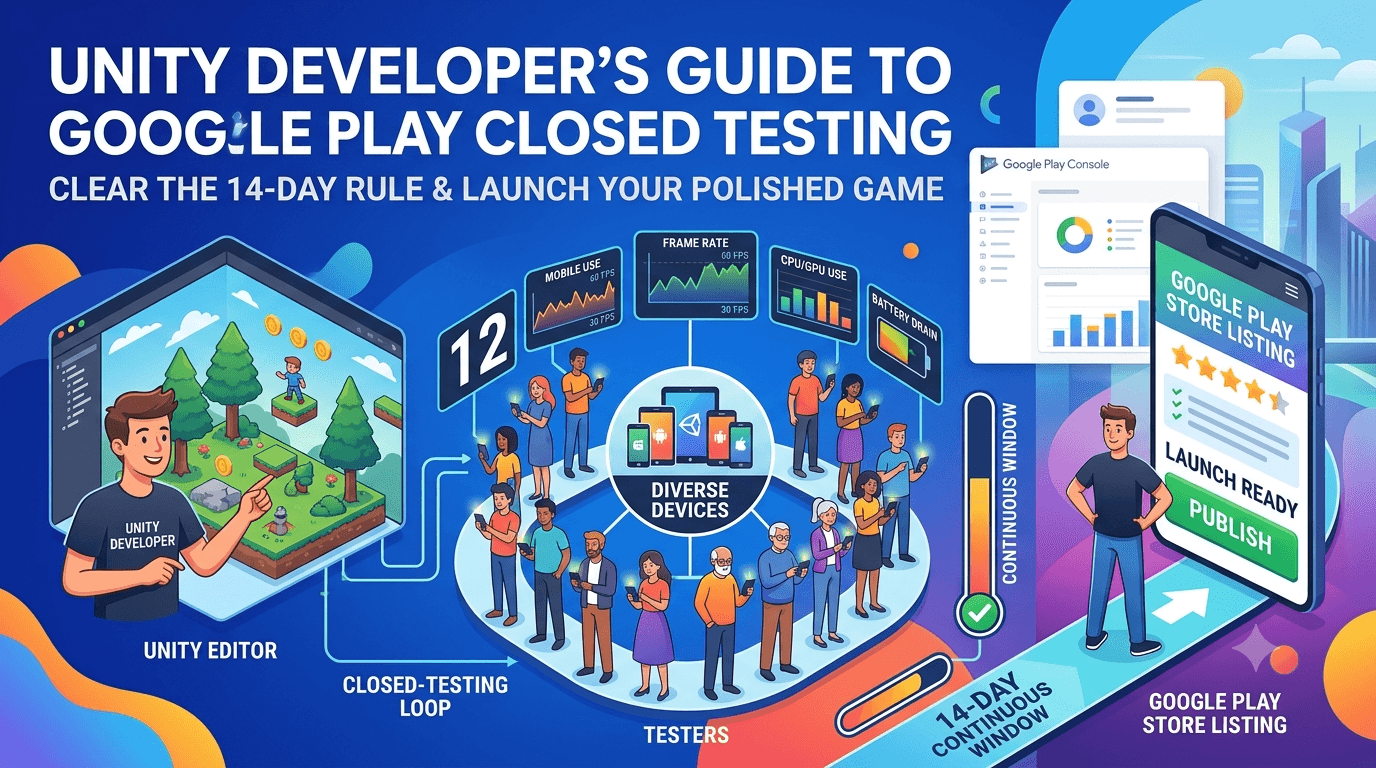
Unity is the engine behind a huge portion of mobile games on Google Play, and Unity developers publishing from a new personal account must satisfy the same 14-day closed-testing rule as every other developer: at least 12 testers opted in for 14 continuous days before production access. Games, however, bring their own testing challenges — performance across a vast range of hardware, large download sizes, and complex real-time behavior — that make a genuine closed test especially valuable. This guide covers what Unity developers need to know to clear the requirement and launch a polished game.
Because a Unity game compiles to a standard Android app, the closed-testing process is the same as for any app. The Unity-specific considerations lie in building an optimized release, managing size, and testing performance and stability across the fragmented device landscape that games are especially sensitive to. Get these right and your game launches strong.
The 14-day rule applies to Unity games
There is no exemption for games or for Unity. The closed-testing requirement is tied to your developer account type, so a Unity game on a new personal account must complete a closed test with 12+ testers for 14 continuous days like any other app. The engine you used does not change the rule. See the closed testing guide and testing Android games for production.
All standard closed-testing advice applies: recruit committed, device-diverse testers, keep your count above 12, avoid dropout, and prepare your listing in parallel. For games, the device-diversity element is particularly important, as we will see.
Building an optimized release
Unity gives you many build settings that dramatically affect performance and size, so configure your release build carefully. Use the appropriate scripting backend (IL2CPP for release), enable optimizations, strip unused code and assets, and target the correct architectures. Build an Android App Bundle so Play can deliver optimized downloads per device. Building an unoptimized or development build would give testers a slow, bloated experience that misrepresents your game. The official Unity Android documentation details the settings.
Configure app signing (ideally Play App Signing) before your first upload. Games are often large, so also consider Play Asset Delivery for large assets to keep the base download reasonable. See app bundle vs APK and Play App Signing setup.
What to test in a Unity game
Games stress devices in ways ordinary apps do not: sustained rendering, physics, audio, and input all running in real time. This makes performance and thermal behavior across hardware a primary testing concern. Frame rate on mid-range and older devices, load times, memory usage, battery drain, and stability during extended play sessions are all critical. A game that runs smoothly on your high-end development phone may stutter or overheat on the budget devices many players own.
| Game test focus | Why it matters |
|---|---|
| Frame rate on low/mid devices | Smoothness defines the experience |
| Load times | Long loads lose players early |
| Memory & crashes | Games crash more on low-RAM devices |
| Battery & heat | Sustained load drains and overheats |
| Input across devices | Touch/controller handling varies |
This is precisely why a device-diverse closed test is so valuable for games. See performance testing and low-end device testing.
Why device diversity is critical for games
No category of app is more sensitive to device diversity than games. GPU capabilities, RAM, screen refresh rates, and thermal profiles vary enormously across Android devices, and a game's performance can differ dramatically from one phone to another. Testing only on your own hardware gives you almost no signal about how the majority of players will experience your game. A broad range of real devices is the only way to know your game performs acceptably across the market.
For Unity developers, this means prioritizing a device-diverse tester group above almost everything else. Twelve testers on identical flagships will not reveal the performance cliffs that budget devices expose. A varied group surfaces the frame-rate drops, crashes, and overheating that would otherwise become one-star reviews. If you cannot assemble diverse hardware yourself, a service that provides device-diverse testers is especially worthwhile for games — you can submit your app.
Managing download size
Games are often large, and download size directly affects install conversion — many players abandon a game that is slow to download or too big for their storage. Use app bundles and Play Asset Delivery to minimize the base download and stream large assets as needed. During testing, confirm that asset delivery works correctly across devices and network conditions, since a broken asset download can leave players stuck. See network condition testing.
Testing size and download behavior on real devices and varied connections tells you whether players can actually get into your game quickly. A large game that downloads and loads efficiently will convert far better than one that does not, so treat size optimization as a launch-critical task validated during your closed test.
Finding testers for your game
The requirement is identical, and for games the emphasis on device diversity makes recruitment especially important. You need 12+ committed testers on varied hardware for 14 continuous days. Your options are your network, gaming communities, freelance platforms, or a dedicated service. Because games benefit so much from diverse real devices, a service that supplies exactly that can be the difference between catching performance issues and shipping them.
If assembling a device-diverse group of committed testers is your bottleneck, you can submit your app to get verified real testers on varied devices, and read where to find real testers.
Setting up testing tracks for your game
After producing your optimized release AAB, you create a closed-testing track in the Play Console and upload the bundle. You add testers by email or through a Google Group, and Play generates an opt-in link each tester must use to join before installing your game. Correct configuration matters because the 14-day clock counts only opted-in testers, and a misconfigured track is a common reason developers discover late that their timer never actually started. For a large game, also confirm that the upload completes fully and that Play Asset Delivery packs are processed before you invite testers. See how to create a closed testing track.
Verify that the uploaded build is your optimized IL2CPP release and not a development build, since Unity projects produce multiple outputs and it is easy to grab the wrong one. Install the game from the Play listing on a real device and confirm it downloads, unpacks any streamed assets, and launches correctly before you invite your full group. This check catches broken asset delivery — one of the most damaging launch problems for games — before it strands a single tester at a loading screen.
Write clear onboarding instructions covering the opt-in flow, because non-technical players stumble on it often and every failed opt-in is a tester who does not count toward your 12. For a game, also tell testers roughly how large the download is and that they may need Wi-Fi, so they are not surprised. Smooth onboarding gets more of your invitees to become active, counted testers on day one, protecting your buffer above the minimum.
Keeping game testers engaged for 14 days
The requirement is 14 continuous days with at least 12 opted-in testers maintained throughout, not simply 12 at one moment. Because games can lose testers who finish the available content or hit a frustrating performance issue, attrition is a real risk, and experienced developers recruit a buffer — often 15 to 20 testers — so ordinary drop-off never pushes them below the line during the window.
Keep testers playing with light, regular touches: notes on what changed in each update, specific challenges or levels to try, and quick acknowledgement of the bugs they report. For a game, giving testers concrete goals sustains engagement far better than a vague "play it and let me know," and it produces more useful reports about the performance and stability issues that vary across their diverse devices — exactly the feedback a game most needs before launch.
Monitor your active tester count in the Play Console rather than assuming it holds steady, and recruit replacements the moment it slips toward the minimum. Games benefit enormously from device diversity, so when replacing testers, prioritize adding varied hardware. Actively managing the window is the biggest factor in clearing it on the first attempt. See how to keep testers engaged.
Common Unity release build mistakes
Most first-upload trouble for Unity games comes from a short list: uploading a development build, using the Mono backend instead of IL2CPP for release, failing to strip unused assets so the download balloons, targeting the wrong architectures, and misconfiguring Play Asset Delivery so large assets fail to stream. Each is preventable once you know to check, and each is far cheaper to catch before your closed test than during it, where a broken or bloated build wastes your testers' goodwill.
Build and install your release on a personal device — ideally a mid-range one — before inviting testers, and play it as a real player would, including any content that streams assets. This surfaces the performance cliffs, oversized downloads, and asset-delivery failures that only appear outside your high-end development machine. Catching them yourself is immensely cheaper than learning about them through a wave of frustrated tester reports partway through your window.
From closed test to launch
When your 14 continuous days with 12+ testers complete, you request production access in the Play Console. If you have prepared your store listing, screenshots, trailer, content rating, data-safety form, and declarations in parallel during the window, you can submit for production review immediately rather than starting that work only after the timer expires. For games, a compelling listing with gameplay footage strongly affects conversion, so investing in it during the window pays off at launch. See what happens after 14 days.
Why real devices beat emulators for Unity games
Emulators are useful for iterating on gameplay logic, but they are almost worthless for judging how your Unity game will actually perform for players. Game performance depends on the real GPU, the real thermal design, the real memory available after the OS and other apps take their share, and the real refresh rate of the panel — none of which an emulator reproduces faithfully. A game that holds a smooth frame rate in an emulator on a powerful desktop can stutter badly on the mid-range phones most players own, and you will never know from the emulator alone.
This is why the closed-testing requirement, built around real opt-in testers, is genuinely valuable for games rather than mere bureaucracy. Real testers on varied hardware surface the frame drops, overheating, long load times, and out-of-memory crashes that define whether players enjoy or uninstall your game. The window is your one structured chance to gather that data before the public does, and treating it as real performance QA rather than a formality is what separates well-reviewed launches from those buried in complaints about lag.
The corollary is that device diversity is the most important property of your tester group. Twelve testers on identical flagships tell you far less than twelve on a spread of GPUs, RAM tiers, and price points. Prioritizing varied real hardware — through your network or a service that supplies device-diverse testers — is the single highest-value decision you can make when testing a Unity game.
A realistic timeline for your game launch
Plan backward from the 14-day minimum. Expect several days up front to finalize and validate your optimized build, verify asset delivery, recruit and onboard testers, and confirm opt-ins before your continuous window truly begins. The 14 days then run while you fix issues and ship updates, and production review after you request access takes additional days. Budgeting three to four weeks end to end, rather than exactly 14 days, keeps your launch expectations realistic — especially for a game, where performance fixes across devices can require several iterations.
Front-loading recruitment and listing work, including your trailer and screenshots, is what lets you launch the moment the window closes. Because games benefit so much from device diversity and because that coverage is hard to assemble alone, resolving your tester source early — via your network or a service providing verified real testers on varied devices — is the highest-leverage step for keeping your game's launch on schedule.
Key takeaways
- The 14-day rule applies to Unity games like any Android app.
- Build an optimized IL2CPP release AAB, not a development build.
- Test frame rate, load times, memory, battery, and heat across devices.
- Device diversity is critical for games — performance varies enormously.
- Optimize download size with app bundles and Play Asset Delivery.
Frequently asked questions
Do Unity games have a testing exemption?
No. Games and Unity apps must meet the same 12-tester, 14-day requirement on new personal accounts.
Which build settings should I use for release?
Use IL2CPP, enable optimizations, strip unused assets, target correct architectures, and build an AAB.
Why does my game run differently across phones?
GPU, RAM, refresh rate, and thermal profiles vary widely. Only device-diverse testing reveals real performance.
How do I handle a large game download?
Use app bundles and Play Asset Delivery to minimize the base download, and test asset delivery across devices.
Why is device diversity so important for games?
Game performance is highly hardware-dependent, so a varied device group is essential to catch frame-rate and crash issues.
Expanded for topical authority — additional practical sections below. Original guide content above is unchanged.
Quick answer
Unity Games and Google Play 14-Day Testing Rule matters because Google Play production access for many new personal developer accounts depends on a successful closed test: at least 12 real testers opted in for 14 continuous days, plus a policy-compliant, stable app. Use this guide to execute the steps correctly, avoid streak-breaking mistakes, and decide whether DIY recruitment or a managed closed testing service is the better path for your deadline.
Real-world scenarios: who this matters for
The guidance in this article on Unity Games and Google Play 14-Day Testing Rule applies across many Android product types. Use these scenarios to map the advice to your situation.
| Developer type | Typical challenge | Practical focus |
|---|---|---|
| Indie / solo | Limited tester network and time | Start closed testing early; keep a buffer above 12 opted-in testers; parallelize listing + Data safety work |
| Startup | Launch deadline vs 14-day rule | Treat the window as fixed; recruit in parallel with QA; avoid last-minute track setup |
| Agency / white-label | Multiple client apps, each needing its own test | One closed test per app; standardize opt-in onboarding; track eligibility dates per client |
| Flutter / React Native | Cross-platform build + Play Console quirks | Ship a signed AAB to closed testing; verify installs from Play, not sideload; watch vitals on mid-range devices |
| Native Kotlin | Device/API fragmentation | Cover API levels and OEMs in your tester mix; fix crashes before requesting production |
| Game / Unity | Performance + retention during 14 days | Keep testers engaged so count never dips below 12; monitor ANRs and battery |
| E-commerce / fintech | Policy + payment flows | Test checkout, permissions, and declarations carefully before production access |
| Healthcare / kids / education | Sensitive policies (Families, data) | Align listing, privacy, and content rating with real app behavior during the test window |
Visual placeholder: Scenario matrix infographic — Indie / Startup / Agency / Cross-platform paths for Unity Games and Google Play 14-Day Testing Rule.
Comparison: DIY recruitment vs managed closed testing
When your goal is Google Play production access, the path you choose for testers affects time, risk, and feedback quality. Use this comparison while deciding how to apply Unity Games and Google Play 14-Day Testing Rule.
| Approach | Time to 12 opted-in | Cost | Dropout risk | Feedback quality | Best when |
|---|---|---|---|---|---|
| Friends & family | Days–weeks | $0 | High | Mixed | Tiny MVP, flexible timeline |
| Reddit / Discord / Telegram | Unpredictable | $0–low | High | Variable | You can manage onboarding daily |
| Peer community exchange | Variable | $0 | Medium | Developer-biased | You can test others’ apps in return |
| Managed closed testing (e.g. Fast Testers) | ~1 hour after valid link | $15 one-time / app | Low (buffer of 15) | Real Play installs | You need speed + continuity for 14 days |
Decision tip: If a broken streak would delay revenue or a client deadline, prioritize reliability over $0 recruitment. DIY is fine when you already have engaged testers and can monitor Play Console daily.
Visual placeholder: Comparison diagram — DIY vs community vs managed testing for Unity Games and Google Play 14-Day Testing Rule.
Common mistakes (and how to avoid them)
These mistakes repeatedly show up when developers work through Unity Games and Google Play 14-Day Testing Rule:
- Confusing invited vs opted-in testers — Only testers who open the opt-in link and install from Play count toward 12. Check the opted-in number in Play Console, not your email list.
- Recruiting exactly 12 with no buffer — One uninstall can break continuity. Aim for ~15 active opted-in testers.
- Starting the counted clock late — Listing assets, Data safety, and privacy work should run during the 14 days, not after.
- Using sideloaded APKs or fake installs — They do not satisfy Play’s closed testing expectations and can create account risk.
- Ignoring tester feedback until day 14 — Crashes that drive uninstalls threaten your streak and your review outcome.
- Requesting production access before the continuous streak completes — Eligibility checks fail even if calendar time has passed.
Troubleshooting checklist
If something feels “stuck” while applying Unity Games and Google Play 14-Day Testing Rule, walk this list before changing strategy:
| Symptom | Likely cause | Fix |
|---|---|---|
| Console shows < 12 testers | Invites sent but not opted in | Resend opt-in link; confirm install from Play |
| “Not eligible” after 14 calendar days | Count dipped below 12 mid-window | Restore 12+ and complete a full continuous streak |
| Tester cannot join | Wrong account, Group lag, or track not published | Verify Google account, Group membership, track release |
| App fails to install | Device/API mismatch or signing issue | Check AAB, minSDK, Play App Signing |
| Production still rejected after testing | Policy, declarations, or stability — not the clock | Read the exact reason; fix that category completely |
Visual placeholder: Troubleshooting flowchart for Unity Games and Google Play 14-Day Testing Rule.
Action checklist
Use this checklist alongside the rest of this guide on Unity Games and Google Play 14-Day Testing Rule:
- ☐ Closed testing track created with a signed release (AAB)
- ☐ Opt-in link tested on a fresh Google account
- ☐ At least 12 testers opted in (prefer ~15)
- ☐ Daily check that opted-in count stays ≥ 12 for 14 continuous days
- ☐ Core flows exercised (login, main feature, permissions, offline/online)
- ☐ Crashes / ANRs triaged from tester reports and vitals
- ☐ Store listing, screenshots, and feature graphic drafted
- ☐ Privacy policy + Data safety + content rating aligned with real behavior
- ☐ Production access requested only after eligibility is green
- ☐ Staged rollout plan ready for first public release
Additional FAQs developers ask about Unity Games and Google Play 14-Day Testing Rule
Quick answer: what should I do first?
Confirm you are on a closed testing track with real opted-in installs, keep 12+ testers for 14 continuous days, and fix policy/stability issues in parallel. Then use the detailed sections above for Unity Games and Google Play 14-Day Testing Rule.
Does this apply to organization (company) accounts?
The classic 12×14 closed testing gate is primarily associated with new personal developer accounts. Always verify your account type and current Play Console eligibility messaging for your app.
Do friends and family count as testers?
Yes — if they opt in via your closed testing link and install from Google Play. They only help if they stay opted in for the continuous period.
Can I update the app during the 14 days?
You can usually push updates on the closed track, but unstable releases that cause uninstalls can threaten your tester count. Prefer polishing via internal testing first when possible.
What if production access is still rejected?
Read the exact reason. Incomplete testing is only one category — policy, Data safety mismatches, and crashes are common. Fix the cited issue fully before reapplying.
Is paying for testers allowed?
Using real people who install from Play is what matters. Avoid fake install farms. A one-time managed service that supplies real closed testers is a practical option when DIY recruitment is too slow.
How is Fast Testers different from free communities?
Free communities trade time and mutual availability. Fast Testers assigns about 15 real testers after you submit a valid closed testing link (one-time $15 per app) and includes a production access guarantee under its refund terms.
Where should I go next?
Review the related guides below, then either finish DIY recruitment or start closed testing if you need speed and continuity.
Sources, updates, and how to use this guide
This article on Unity Games and Google Play 14-Day Testing Rule is maintained for Android developers preparing Google Play closed testing and production access. Always cross-check eligibility text inside your own Play Console, because Google’s UI labels and account rules can vary by account type and date.
- Primary official references: Google Play closed testing help, Developer Program Policies, and Play Console eligibility messaging for your app.
- Practical experience lens: guidance here reflects common failure modes indie developers and agencies hit when recruiting testers, maintaining the 14-day streak, and recovering from production-access rejections.
- Last reviewed focus: 12×14 closed testing continuity, real vs fake testers, and parallel listing/compliance work during the window.
Related guides and next steps
Continue building topical depth around Unity Games and Google Play 14-Day Testing Rule with these Fast Testers resources:
- Closed Testing Vs Open Testing On Google Play
- Google Play Internal Testing Vs Closed Testing
- Testing Android Games For Google Play Production
- Ad Supported Apps And Google Play Ad Policy Testing
- Agency Guide Testing Client Apps On Google Play
- Android Tv Apps And Google Play Testing Tracks
- Common Google Play Closed Testing Mistakes
- Complete Glossary Of Google Play Testing Terms
- Pricing — $15 closed testing
- How Fast Testers works
- FAQ
- Developer reviews
- Case studies
- Submit your app / start closed testing
Need reliable testers so your 14-day streak does not stall? Educate first with the guides above, then start when you are ready — one-time pricing, real Play installs, dashboard tracking.
Internal navigation hub — added to strengthen topical connections. Original article content above is unchanged.
Continue learning
- Google Play Internal Testing vs Closed Testing — Learn about internal vs closed tracks for Google Play closed testing. Complete guide for Android developers pu.
- Finance Apps: Google Play Testing and Compliance — Learn about finance app requirements for Google Play closed testing. Complete guide for Android developers pub.
- Google Play Testing Requirements by Country — Learn about regional requirements for Google Play closed testing. Complete guide for Android developers publis.
- Kids Apps and Google Play Families Policy Testing — Learn about family policy apps for Google Play closed testing. Complete guide for Android developers publishin.
- WebView Wrapper Apps: Google Play Testing Guide — Learn about WebView app testing for Google Play closed testing. Complete guide for Android developers publishi.
- Battery Usage Testing and Play Store Vitals — Learn about battery optimization for Google Play closed testing. Complete guide for Android developers publish.
Next steps
- Ready to run closed testing with real Android testers? Submit your app or see pricing ($15 one-time).
- Compare options on our testing service comparison page, or read developer reviews and case studies.
- Still deciding? Review how Fast Testers works and the FAQ.