
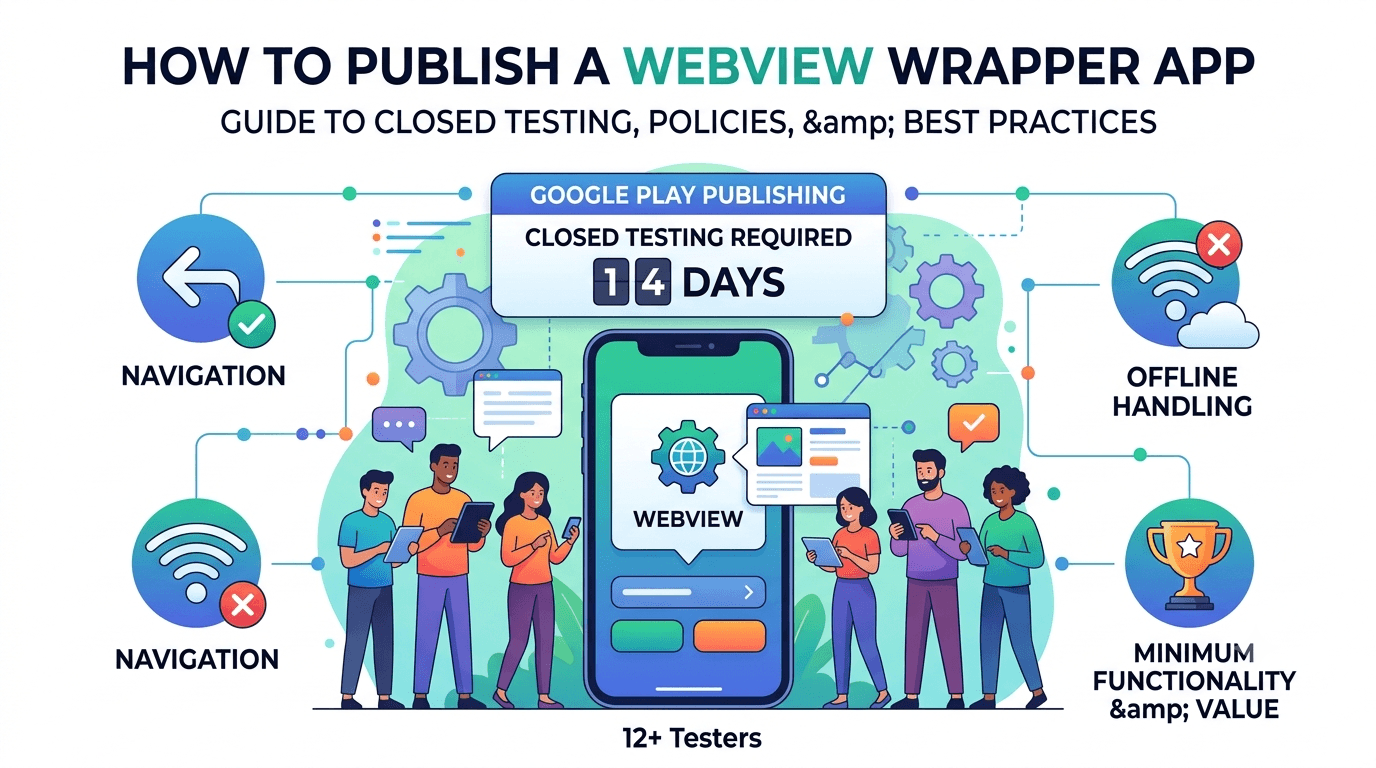
WebView wrapper apps — Android apps that mostly display a website inside a WebView — are one of the fastest ways to get a mobile presence, but they are also one of the most scrutinized app types on Google Play. Google's minimum-functionality and spam policies specifically target apps that add little value beyond a wrapped website, and wrapper apps published from a new personal account must also complete a closed test with at least 12 testers opted in for 14 continuous days before production access. This guide covers how to test and publish a WebView wrapper app so it clears both the requirement and the policies.
The closed-testing process is the same as for any app, but wrapper apps face a real risk of rejection for insufficient functionality, so using your testing window to confirm both quality and genuine value is essential. Done well, a wrapper app can be perfectly acceptable; done carelessly, it is a classic rejection.
The requirement applies to wrapper apps
There is no exemption for WebView wrapper apps. The closed-testing requirement is tied to your developer account type, so a wrapper app on a new personal account must complete a closed test with 12+ testers for 14 continuous days before production access. See the closed testing guide. Given the added policy risk wrapper apps face, prepare compliance in parallel with testing.
Standard advice applies: recruit committed, device-diverse testers, keep your count above 12, and prepare your listing in parallel. For wrapper apps, the harder challenge is often demonstrating enough native value to satisfy policy, which we cover below.
Minimum functionality and spam policy
Google's policies require apps to provide a baseline of functionality and discourage apps that merely repackage a website with no added value. A thin wrapper that simply loads a site in a WebView, with no native features, offline capability, notifications, or genuine app-like experience, risks rejection under the minimum-functionality and spam policies. To be acceptable, your app should add real value beyond the mobile website — push notifications, offline support, device integrations, or a materially better experience. Review Google's minimum functionality and spam guidance.
Use your testing window to honestly assess whether your app clears this bar. Ask whether a user would prefer your app to just visiting the website in a browser, and if the answer is no, add native value before launch. This is the single most important consideration for a wrapper app, because no amount of testing will save an app that policy considers a low-value repackage. See app not eligible for production access.
What to test in a wrapper app
Wrapper apps have distinctive failure modes. The WebView must handle navigation correctly (back button, links, external URLs), behave well offline or on poor connections, render properly across screen sizes, handle file uploads and downloads if needed, and integrate any native features cleanly. Because the app depends entirely on the WebView, issues there ruin the whole experience, so thorough testing of navigation and rendering across devices is critical.
| Wrapper test focus | Why it matters |
|---|---|
| Back button / navigation | Must behave like a native app, not a browser |
| Offline / poor network | Blank screens frustrate users |
| Rendering across sizes | Site must adapt to all screens |
| File upload / download | Common WebView pain point |
| External links | Should open appropriately, not trap users |
Real testers on varied devices reveal the navigation and rendering issues that make wrapper apps feel broken. See network condition testing.
Testing navigation and the back button
The most common complaint about wrapper apps is broken navigation. Users expect the Android back button to navigate back through the WebView history and then exit the app gracefully, not to close the app abruptly or get stuck. You must handle back-button behavior, link navigation, and the distinction between in-app content and external links that should open elsewhere. Getting this wrong makes your app feel broken even if the underlying site is perfect.
During your closed test, have testers navigate extensively — following links, using the back button, opening external URLs — and report anything that feels wrong. Confirm that navigating within your site stays in the app, that external links behave sensibly, and that the back button never traps or abruptly kills the app. Real testers quickly surface navigation problems you might not notice, and fixing them is what makes a wrapper feel like a genuine app rather than a clumsy browser. See deep link testing.
Handling offline and poor connections
A wrapper app that shows a blank white screen when connectivity drops is a poor experience and a common reason users abandon these apps. Because your content lives on the web, you must handle offline and slow-network states gracefully — showing a helpful message, cached content, or a retry option rather than a blank or broken page. Adding genuine offline support also helps satisfy the minimum-functionality bar by providing value beyond the website.
Test how your app behaves on slow, intermittent, and absent connections, since real users frequently encounter all three. Confirm it degrades gracefully and recovers when connectivity returns. This is both a quality issue and, to a degree, a policy one, since thoughtful offline handling is exactly the kind of native value that distinguishes an acceptable wrapper from a rejected one. Real testers on varied networks are the reliable way to validate this behavior. See offline-first best practices.
Setting up your closed-testing track
Once your signed release build is ready, create a closed-testing track in the Play Console and upload it, add testers by email or Google Group, and share the opt-in link each tester must use before installing. Correct configuration matters because the 14-day clock counts only opted-in testers, and a misconfigured track is a common reason developers realize late that their timer never started. Install from the listing on a real device and confirm the WebView loads and navigation works before inviting your full group. See how to create a closed testing track.
Give testers clear onboarding instructions covering the opt-in flow and what to exercise — navigation, offline behavior, and any native features. Every failed opt-in is a tester who does not count toward your 12, so smooth guidance maximizes active testers from day one and gives you the device-diverse coverage a WebView-dependent app needs.
Recruiting and managing the window
You need 12+ committed, device-diverse testers for 14 continuous days. Recruit a buffer above 12 to absorb attrition, keep testers engaged with clear tasks and quick responses, and direct them to test navigation, offline states, and rendering across devices. Monitor your active count in the Play Console and recruit replacements early if it slips toward the minimum. Actively managing the window is the biggest factor in clearing it on the first attempt.
If assembling a reliable, device-diverse group is your bottleneck, a service that supplies verified real testers solves it quickly. You can submit your app to get started, and read where to find real testers and how to keep testers engaged.
Why real-device testing matters for wrapper apps
WebView behavior varies across devices and Android versions more than developers expect, because the system WebView component is updated independently and rendering can differ. A site that renders and navigates perfectly on your development phone can misbehave on another device with a different WebView version or screen size. File pickers, downloads, and permission prompts triggered from within the WebView are especially prone to device-specific quirks. Only real testers on varied devices reveal these problems before your users hit them.
This is why the closed-testing requirement, built on real opt-in testers, is genuinely useful even for a seemingly simple wrapper app. Real testers navigating your app across diverse devices surface the rendering, navigation, and integration issues that make wrapper apps feel broken. The window is your structured chance to confirm the experience holds up across the market, and device diversity in your tester group is what makes that confidence real.
Common reasons wrapper apps get rejected
Wrapper apps hit a predictable set of rejection causes. The leading one is insufficient functionality — an app judged to add nothing beyond the website. Broken navigation discovered during review, poor offline handling, misleading store listings that overstate the app, and permissions requested without justification also cause rejections. Because wrapper apps are a known low-effort pattern, they receive extra scrutiny, so the bar for demonstrating genuine value is higher than for other app types.
Use your window to audit against these pitfalls: confirm your app adds real native value, verify navigation and offline behavior work, ensure your listing accurately represents the app, and justify every permission. Catching these before you request production access is what prevents the classic wrapper-app rejection and the frustrating cycle of resubmission. See app not eligible for production access.
From closed testing to production
When your 14 continuous days with 12+ testers complete, request production access in the Play Console. For a wrapper app, be especially sure your app clears the minimum-functionality bar and that navigation, offline handling, and your listing are all solid before you submit, since these are the most likely rejection points. Preparing everything in parallel during the window lets you submit immediately rather than losing more time. See what happens after 14 days.
Making the 14-day window count
Because the requirement forces you to test anyway, the smart move is to extract genuine value from the window rather than treating it as a formality. For a wrapper app, that means using the time to confirm your app clears the functionality bar, that navigation and offline handling are solid, and that the experience genuinely justifies being an app rather than a bookmark. Brief your testers clearly, give them specific things to try, and treat their feedback as a chance to strengthen a category of app that is otherwise prone to rejection.
A well-run window turns a mandatory delay into a materially better product and a smoother review. Enter production having resolved the navigation, rendering, and value concerns your testers surfaced, and you avoid the frustrating resubmission cycle that thin wrapper apps so often suffer. The 14 days are an investment; spending them deliberately is what separates a confident launch from a hopeful one. See the testing checklist.
Turning tester feedback into fixes
The value of your closed test scales with how well you capture and act on feedback. Give testers a frictionless way to report problems and ask specific questions: did the back button behave, did any page fail to load, did the app feel like a real app or just a website, did anything look broken on your device? Concrete questions produce the actionable reports that let you fix the navigation, rendering, and value issues most likely to cause rejection or poor reviews for a wrapper app.
Then close the loop: when you ship a build addressing reported issues, tell testers what changed and ask them to reconfirm on their device. This validates fixes across diverse hardware and WebView versions and keeps testers engaged. A wrapper app that enters production having already resolved its navigation and offline problems launches far stronger than one that treated the window as a formality. See fixing crashes before production.
A realistic timeline for your launch
Plan backward from the 14-day minimum. Expect a few days up front to finalize your build, recruit and onboard device-diverse testers, and confirm opt-ins before your continuous window truly begins. The 14 days then run while you fix issues and ship updates, and production review after you request access takes additional days. Budgeting three to four weeks end to end, rather than exactly 14, keeps your wrapper app's launch aligned with reality.
Developers who hit their dates front-load recruitment and, for wrapper apps, the work of demonstrating genuine value so nothing blocks them when the window closes. If tester recruitment is your uncertain variable, resolving it early through your network or a service supplying verified real testers is the highest-leverage step for keeping your launch on schedule. See getting 12 testers without friends or family.
Use internal testing before your closed test
The Play Console's internal testing track is faster than the closed track and ideal for a first pass. For a wrapper app, use it to shake out obvious navigation and loading problems with a small trusted group before your counted 14-day window begins. Catching a broken WebView or a trapping back button privately, rather than during your closed test, protects your testers' goodwill and prevents losing days of your continuous window to a build with basic issues.
A practical rhythm is to validate each release candidate on the internal track, confirm navigation and offline behavior on a couple of real devices, then promote it to the closed track where your counted testers live. This staging discipline keeps the closed track stable and your feedback focused on real quality rather than obvious bugs. Treating internal testing as staging and closed testing as the requirement keeps your window productive. See internal vs closed testing.
Key takeaways
- Wrapper apps must meet the 12-tester, 14-day requirement like any app.
- Clear the minimum-functionality bar — add real value beyond the website.
- Test navigation and the back button to feel native, not browser-like.
- Handle offline and poor networks gracefully, not with blank screens.
- Test WebView behavior across diverse devices and versions.
Frequently asked questions
Are WebView wrapper apps allowed on Google Play?
Yes, if they provide genuine value beyond the website. Thin wrappers that merely repackage a site risk rejection under minimum-functionality and spam policies.
Do wrapper apps need closed testing?
Yes. On a new personal account, the 12-tester, 14-day requirement applies to wrapper apps.
How do I make my wrapper app acceptable?
Add native value — push notifications, offline support, device integrations, or a materially better experience than the mobile website.
What's the most common wrapper-app bug?
Broken back-button and navigation behavior. Users expect native navigation, not browser-like or trapping behavior.
Why test WebView apps on many devices?
The system WebView updates independently and rendering varies, so behavior differs across devices and versions.
Expanded for topical authority — additional practical sections below. Original guide content above is unchanged.
Quick answer
WebView Wrapper Apps: Google Play Testing Guide matters because Google Play production access for many new personal developer accounts depends on a successful closed test: at least 12 real testers opted in for 14 continuous days, plus a policy-compliant, stable app. Use this guide to execute the steps correctly, avoid streak-breaking mistakes, and decide whether DIY recruitment or a managed closed testing service is the better path for your deadline.
Real-world scenarios: who this matters for
The guidance in this article on WebView Wrapper Apps: Google Play Testing Guide applies across many Android product types. Use these scenarios to map the advice to your situation.
| Developer type | Typical challenge | Practical focus |
|---|---|---|
| Indie / solo | Limited tester network and time | Start closed testing early; keep a buffer above 12 opted-in testers; parallelize listing + Data safety work |
| Startup | Launch deadline vs 14-day rule | Treat the window as fixed; recruit in parallel with QA; avoid last-minute track setup |
| Agency / white-label | Multiple client apps, each needing its own test | One closed test per app; standardize opt-in onboarding; track eligibility dates per client |
| Flutter / React Native | Cross-platform build + Play Console quirks | Ship a signed AAB to closed testing; verify installs from Play, not sideload; watch vitals on mid-range devices |
| Native Kotlin | Device/API fragmentation | Cover API levels and OEMs in your tester mix; fix crashes before requesting production |
| Game / Unity | Performance + retention during 14 days | Keep testers engaged so count never dips below 12; monitor ANRs and battery |
| E-commerce / fintech | Policy + payment flows | Test checkout, permissions, and declarations carefully before production access |
| Healthcare / kids / education | Sensitive policies (Families, data) | Align listing, privacy, and content rating with real app behavior during the test window |
Visual placeholder: Scenario matrix infographic — Indie / Startup / Agency / Cross-platform paths for WebView Wrapper Apps: Google Play Testing Guide.
Comparison: DIY recruitment vs managed closed testing
When your goal is Google Play production access, the path you choose for testers affects time, risk, and feedback quality. Use this comparison while deciding how to apply WebView Wrapper Apps: Google Play Testing Guide.
| Approach | Time to 12 opted-in | Cost | Dropout risk | Feedback quality | Best when |
|---|---|---|---|---|---|
| Friends & family | Days–weeks | $0 | High | Mixed | Tiny MVP, flexible timeline |
| Reddit / Discord / Telegram | Unpredictable | $0–low | High | Variable | You can manage onboarding daily |
| Peer community exchange | Variable | $0 | Medium | Developer-biased | You can test others’ apps in return |
| Managed closed testing (e.g. Fast Testers) | ~1 hour after valid link | $15 one-time / app | Low (buffer of 15) | Real Play installs | You need speed + continuity for 14 days |
Decision tip: If a broken streak would delay revenue or a client deadline, prioritize reliability over $0 recruitment. DIY is fine when you already have engaged testers and can monitor Play Console daily.
Visual placeholder: Comparison diagram — DIY vs community vs managed testing for WebView Wrapper Apps: Google Play Testing Guide.
Common mistakes (and how to avoid them)
These mistakes repeatedly show up when developers work through WebView Wrapper Apps: Google Play Testing Guide:
- Confusing invited vs opted-in testers — Only testers who open the opt-in link and install from Play count toward 12. Check the opted-in number in Play Console, not your email list.
- Recruiting exactly 12 with no buffer — One uninstall can break continuity. Aim for ~15 active opted-in testers.
- Starting the counted clock late — Listing assets, Data safety, and privacy work should run during the 14 days, not after.
- Using sideloaded APKs or fake installs — They do not satisfy Play’s closed testing expectations and can create account risk.
- Ignoring tester feedback until day 14 — Crashes that drive uninstalls threaten your streak and your review outcome.
- Requesting production access before the continuous streak completes — Eligibility checks fail even if calendar time has passed.
Troubleshooting checklist
If something feels “stuck” while applying WebView Wrapper Apps: Google Play Testing Guide, walk this list before changing strategy:
| Symptom | Likely cause | Fix |
|---|---|---|
| Console shows < 12 testers | Invites sent but not opted in | Resend opt-in link; confirm install from Play |
| “Not eligible” after 14 calendar days | Count dipped below 12 mid-window | Restore 12+ and complete a full continuous streak |
| Tester cannot join | Wrong account, Group lag, or track not published | Verify Google account, Group membership, track release |
| App fails to install | Device/API mismatch or signing issue | Check AAB, minSDK, Play App Signing |
| Production still rejected after testing | Policy, declarations, or stability — not the clock | Read the exact reason; fix that category completely |
Visual placeholder: Troubleshooting flowchart for WebView Wrapper Apps: Google Play Testing Guide.
Action checklist
Use this checklist alongside the rest of this guide on WebView Wrapper Apps: Google Play Testing Guide:
- ☐ Closed testing track created with a signed release (AAB)
- ☐ Opt-in link tested on a fresh Google account
- ☐ At least 12 testers opted in (prefer ~15)
- ☐ Daily check that opted-in count stays ≥ 12 for 14 continuous days
- ☐ Core flows exercised (login, main feature, permissions, offline/online)
- ☐ Crashes / ANRs triaged from tester reports and vitals
- ☐ Store listing, screenshots, and feature graphic drafted
- ☐ Privacy policy + Data safety + content rating aligned with real behavior
- ☐ Production access requested only after eligibility is green
- ☐ Staged rollout plan ready for first public release
Additional FAQs developers ask about WebView Wrapper Apps: Google Play Testing Guide
Quick answer: what should I do first?
Confirm you are on a closed testing track with real opted-in installs, keep 12+ testers for 14 continuous days, and fix policy/stability issues in parallel. Then use the detailed sections above for WebView Wrapper Apps: Google Play Testing Guide.
Does this apply to organization (company) accounts?
The classic 12×14 closed testing gate is primarily associated with new personal developer accounts. Always verify your account type and current Play Console eligibility messaging for your app.
Do friends and family count as testers?
Yes — if they opt in via your closed testing link and install from Google Play. They only help if they stay opted in for the continuous period.
Can I update the app during the 14 days?
You can usually push updates on the closed track, but unstable releases that cause uninstalls can threaten your tester count. Prefer polishing via internal testing first when possible.
What if production access is still rejected?
Read the exact reason. Incomplete testing is only one category — policy, Data safety mismatches, and crashes are common. Fix the cited issue fully before reapplying.
Is paying for testers allowed?
Using real people who install from Play is what matters. Avoid fake install farms. A one-time managed service that supplies real closed testers is a practical option when DIY recruitment is too slow.
How is Fast Testers different from free communities?
Free communities trade time and mutual availability. Fast Testers assigns about 15 real testers after you submit a valid closed testing link (one-time $15 per app) and includes a production access guarantee under its refund terms.
Where should I go next?
Review the related guides below, then either finish DIY recruitment or start closed testing if you need speed and continuity.
Sources, updates, and how to use this guide
This article on WebView Wrapper Apps: Google Play Testing Guide is maintained for Android developers preparing Google Play closed testing and production access. Always cross-check eligibility text inside your own Play Console, because Google’s UI labels and account rules can vary by account type and date.
- Primary official references: Google Play closed testing help, Developer Program Policies, and Play Console eligibility messaging for your app.
- Practical experience lens: guidance here reflects common failure modes indie developers and agencies hit when recruiting testers, maintaining the 14-day streak, and recovering from production-access rejections.
- Last reviewed focus: 12×14 closed testing continuity, real vs fake testers, and parallel listing/compliance work during the window.
Related guides and next steps
Continue building topical depth around WebView Wrapper Apps: Google Play Testing Guide with these Fast Testers resources:
- Agency Guide Testing Client Apps On Google Play
- Ad Supported Apps And Google Play Ad Policy Testing
- Android Tv Apps And Google Play Testing Tracks
- Closed Testing Vs Open Testing On Google Play
- Education Apps And Google Play Compliance Testing
- Finance Apps Google Play Testing And Compliance
- Fitness Apps And Google Play Beta Testing Rules
- Google Play Closed Testing For Flutter Apps
- Pricing — $15 closed testing
- How Fast Testers works
- FAQ
- Developer reviews
- Case studies
- Submit your app / start closed testing
Need reliable testers so your 14-day streak does not stall? Educate first with the guides above, then start when you are ready — one-time pricing, real Play installs, dashboard tracking.
Internal navigation hub — added to strengthen topical connections. Original article content above is unchanged.
Continue learning
- Finance Apps: Google Play Testing and Compliance — Learn about finance app requirements for Google Play closed testing. Complete guide for Android developers pub.
- Google Play Internal Testing vs Closed Testing — Learn about internal vs closed tracks for Google Play closed testing. Complete guide for Android developers pu.
- Kids Apps and Google Play Families Policy Testing — Learn about family policy apps for Google Play closed testing. Complete guide for Android developers publishin.
- Google Play Testing Requirements by Country — Learn about regional requirements for Google Play closed testing. Complete guide for Android developers publis.
- Localization Testing Guide for Android Apps — A localization testing guide for Android apps: translations, layouts, formats, RTL languages, and cultural fit.
- Performance Testing Guide for Android Apps — A performance testing guide for Android apps: startup time, responsiveness, memory, battery, and network — plu.
Next steps
- Ready to run closed testing with real Android testers? Submit your app or see pricing ($15 one-time).
- Compare options on our testing service comparison page, or read developer reviews and case studies.
- Still deciding? Review how Fast Testers works and the FAQ.